Authentication Failed
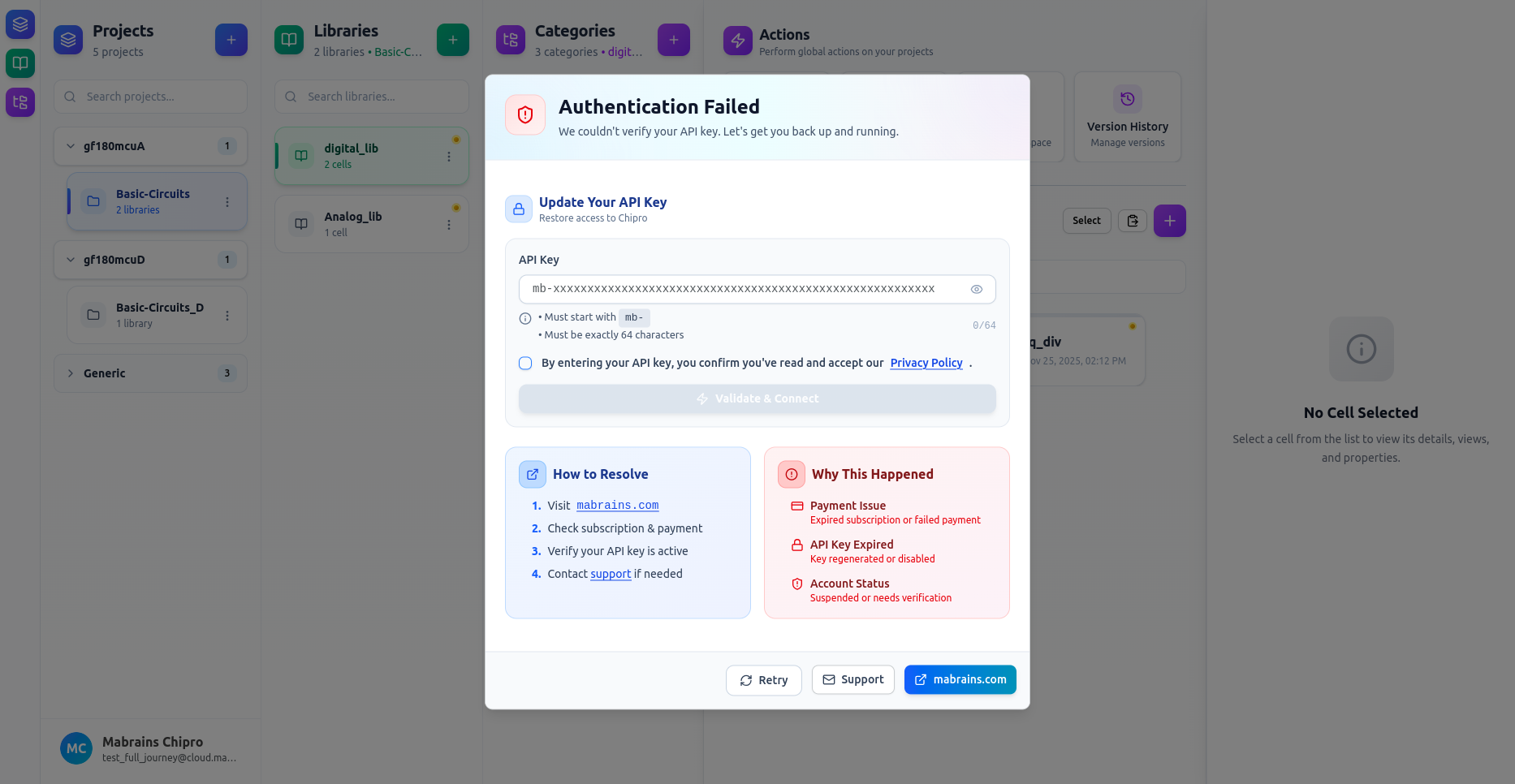
If Chipro cannot verify your API key, the platform will pause your workspace and show an Authentication Failed dialog. This prevents tools, views, and automation from running with invalid or expired credentials.
The dialog looks like this:
What This Means
Your current API key could not be validated.
Chipro blocks access until the issue is resolved to ensure workspace security and correct billing status.
This may happen if:
- Your subscription or payment needs attention
- Your API key expired
- The key was regenerated or deleted
- Your account requires verification
- You entered the key incorrectly
The dialog shows these possible causes on the right side under “Why This Happened”.
How to Fix It
Use the How to Resolve steps shown in the dialog:
- Visit mabrains.com
- Confirm your subscription and payment status
- Check whether your API key is still active
- Contact support if you need assistance
Once the issue is resolved, return to this dialog.
Update Your API Key
The center section of the dialog includes a field to enter your updated key.
To restore access:
- Paste a valid API key
- Click Validate & Connect
- The workspace will reload and continue normally
If you need a new key, create one from your Mabrains dashboard and paste it here.
After Recovery
Once your API key is validated successfully, the dialog closes automatically and your full Chipro workspace becomes available again.
This ensures you always work in a secure and correctly authenticated environment.