Chipro Installation
Chipro provides a lightweight, cross-platform running that simplifies setup—even for users with minimal experience working with containerized applications.
Prerequisite:
Chipro runs inside a container. Docker or Podman must be installed on your system before continuing.
1. Download the Runner
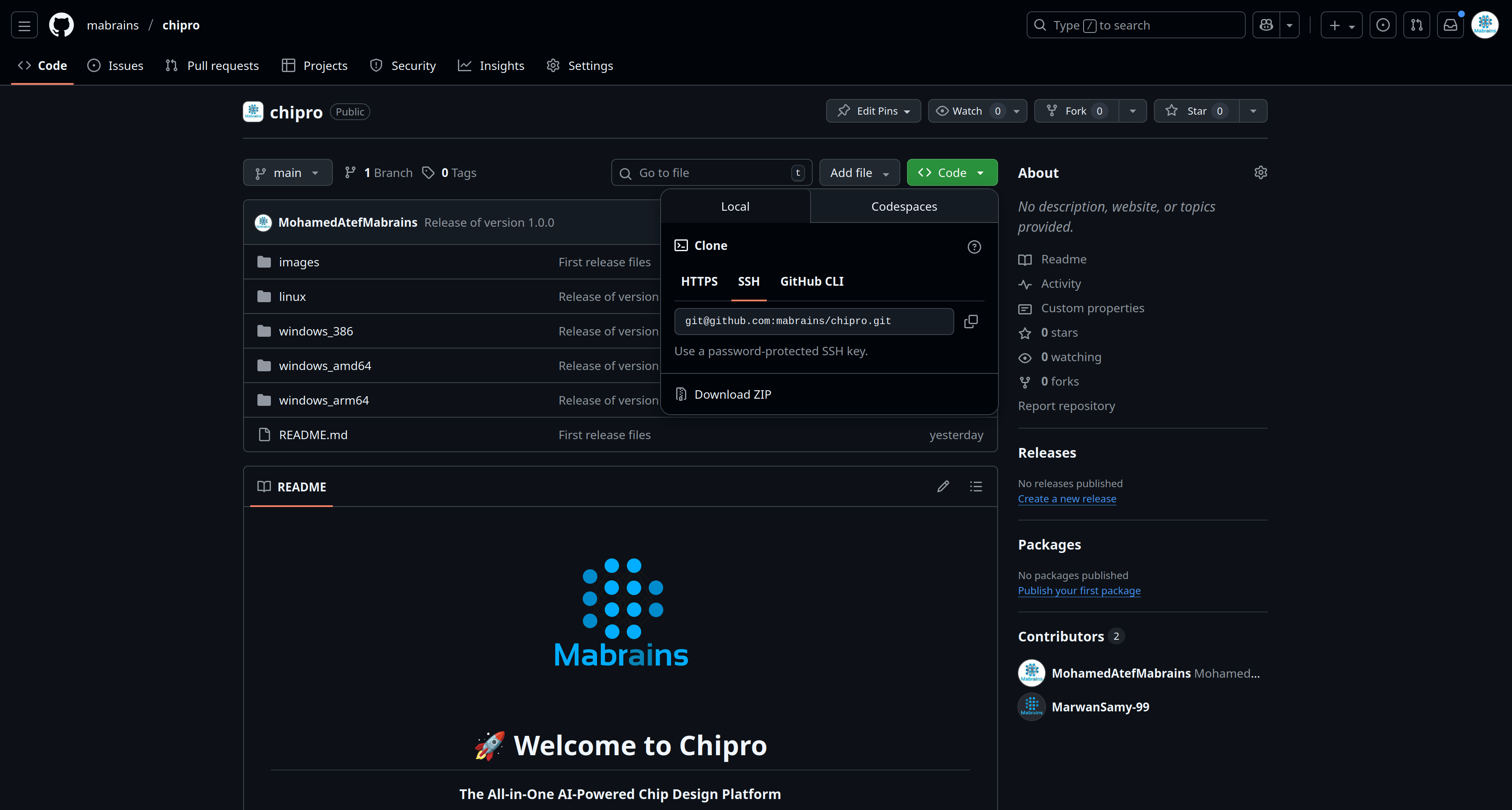
The official runner is available on the Chipro GitHub repository.
- Visit the Chipro repository:
https://github.com/mabrains/chipro - Click the green Code button.
- Select Download ZIP.
2. Unzip and Run the Runner
Once the ZIP file is downloaded, extract it and run the runner that matches your operating system.
-
Locate the downloaded ZIP file and extract it.
Most operating systems allow extraction by simply double-clicking the ZIP file.
-
Open the folder corresponding to your OS and architecture, then run the runner executable.
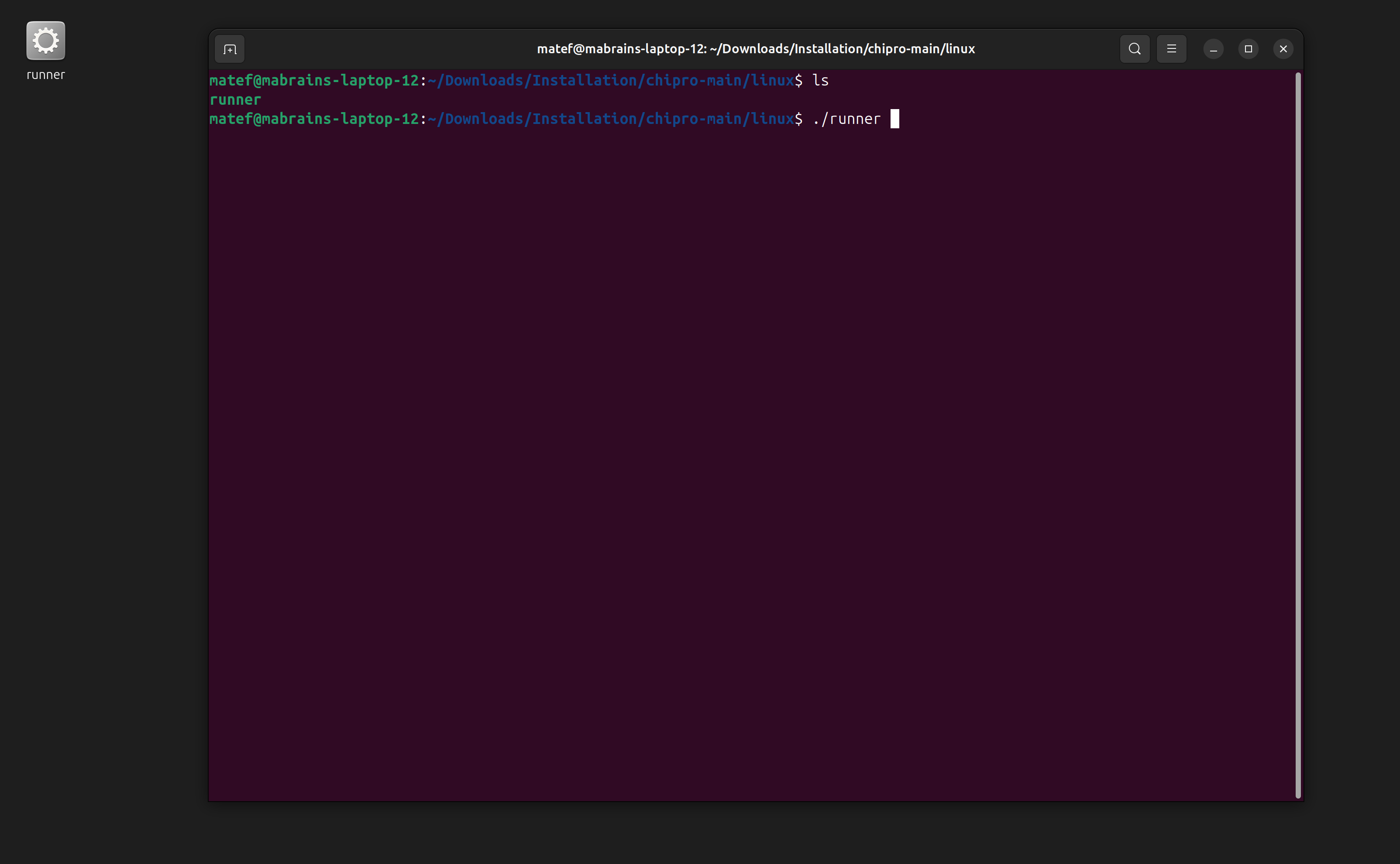
On Linux, you must run the runner from the Terminal.
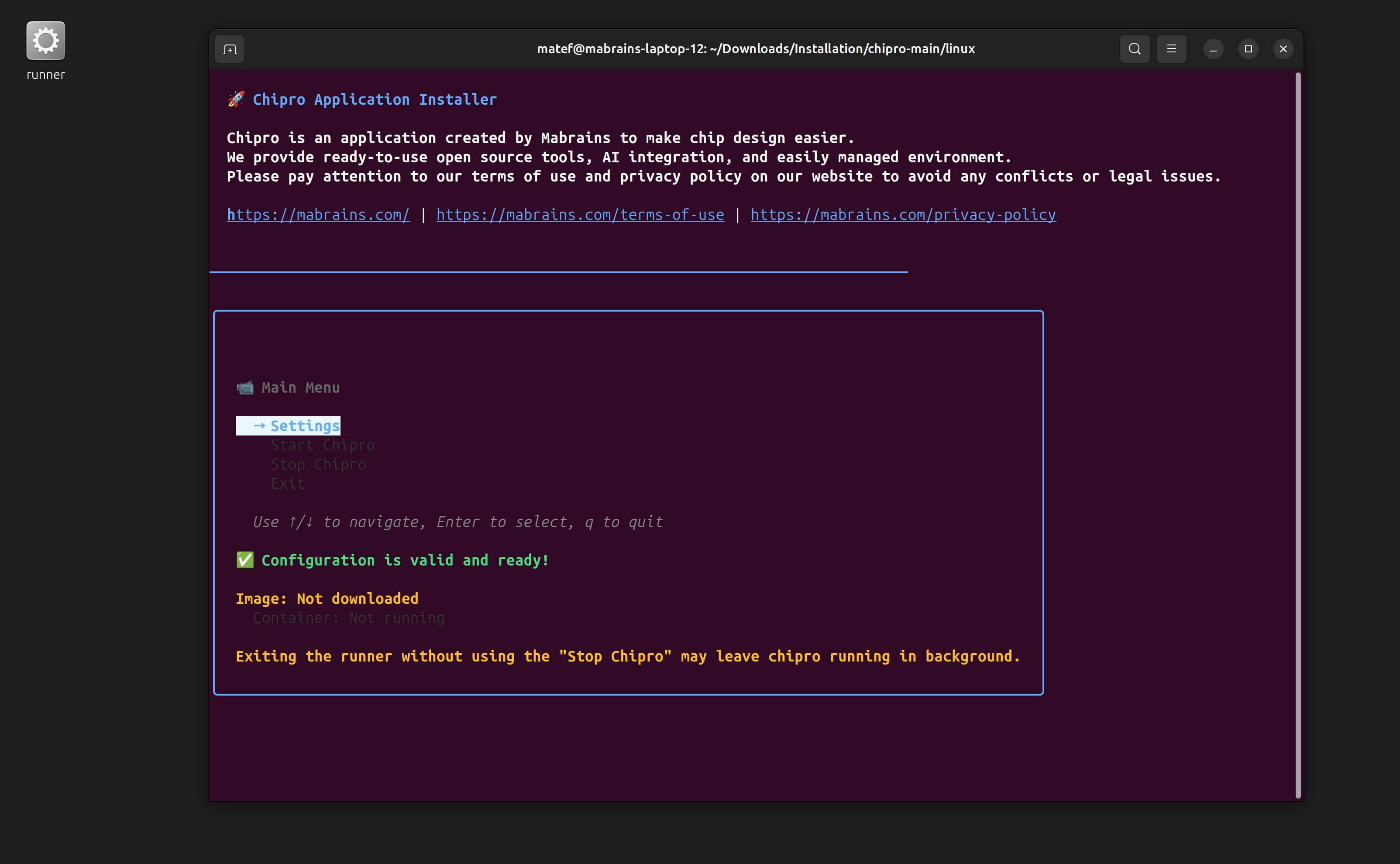
- After launching the runner, you will see the Chipro Runner Home screen, where you can configure settings and start the application.
The runner main menu will show if there's a running instance and will show the ports of it, Also it will show if the image is downloaded.
3. Using the Runner
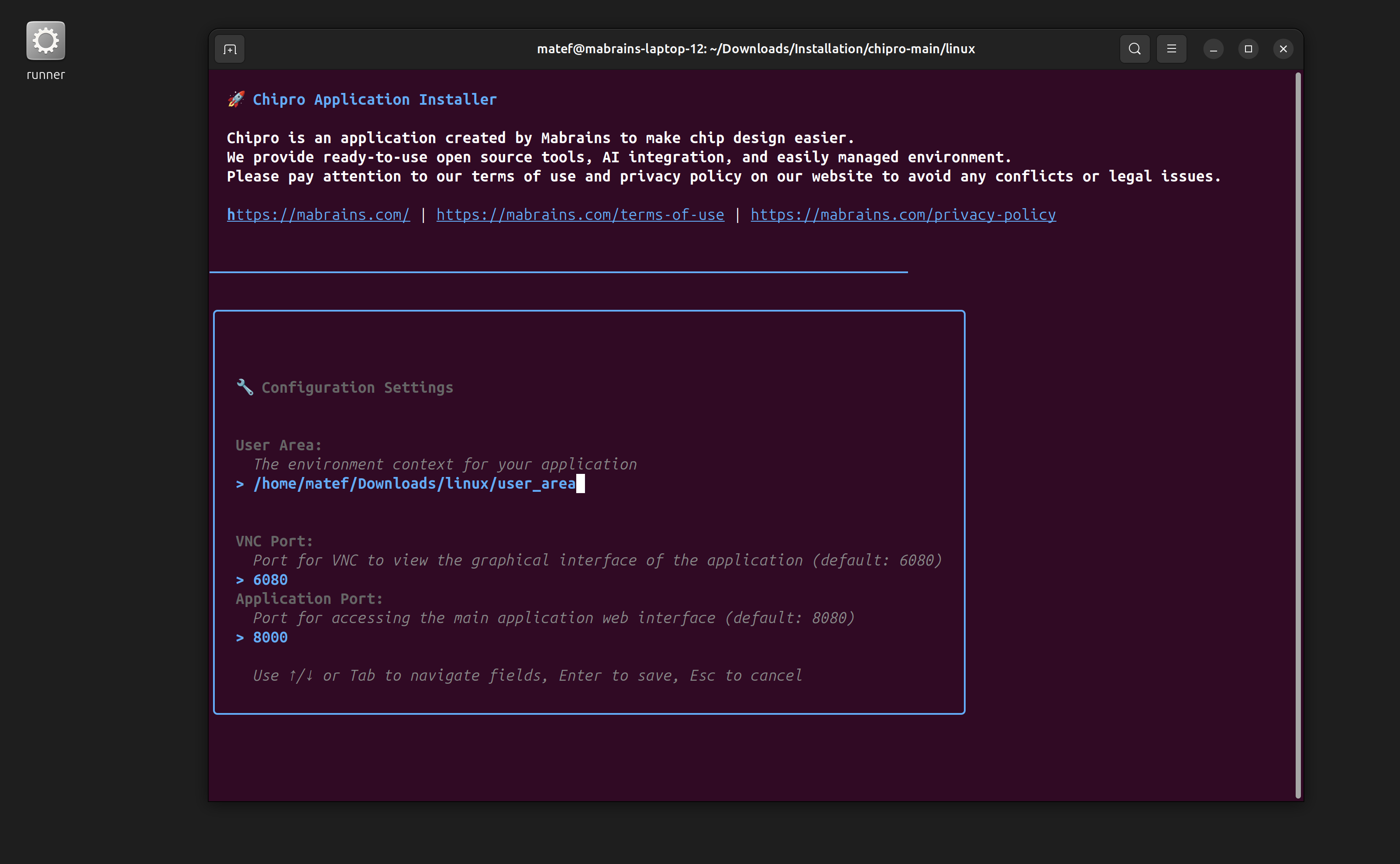
Settings
The runner allows you to configure three main settings:
-
User Area
- The directory where all Chipro data will be stored.
- Must be a full, absolute path.
- Will be created automatically if it does not exist.
- This field has no default value and is required before running Chipro.
-
VNC Port
- The port used to access Chipro’s built-in tool interfaces via your browser.
-
Application Port
- The port used to access Mohet and the Design Manager.
Your settings are saved automatically, even if you close the runner.
After entering new values, press Enter to apply them.
Starting the Application
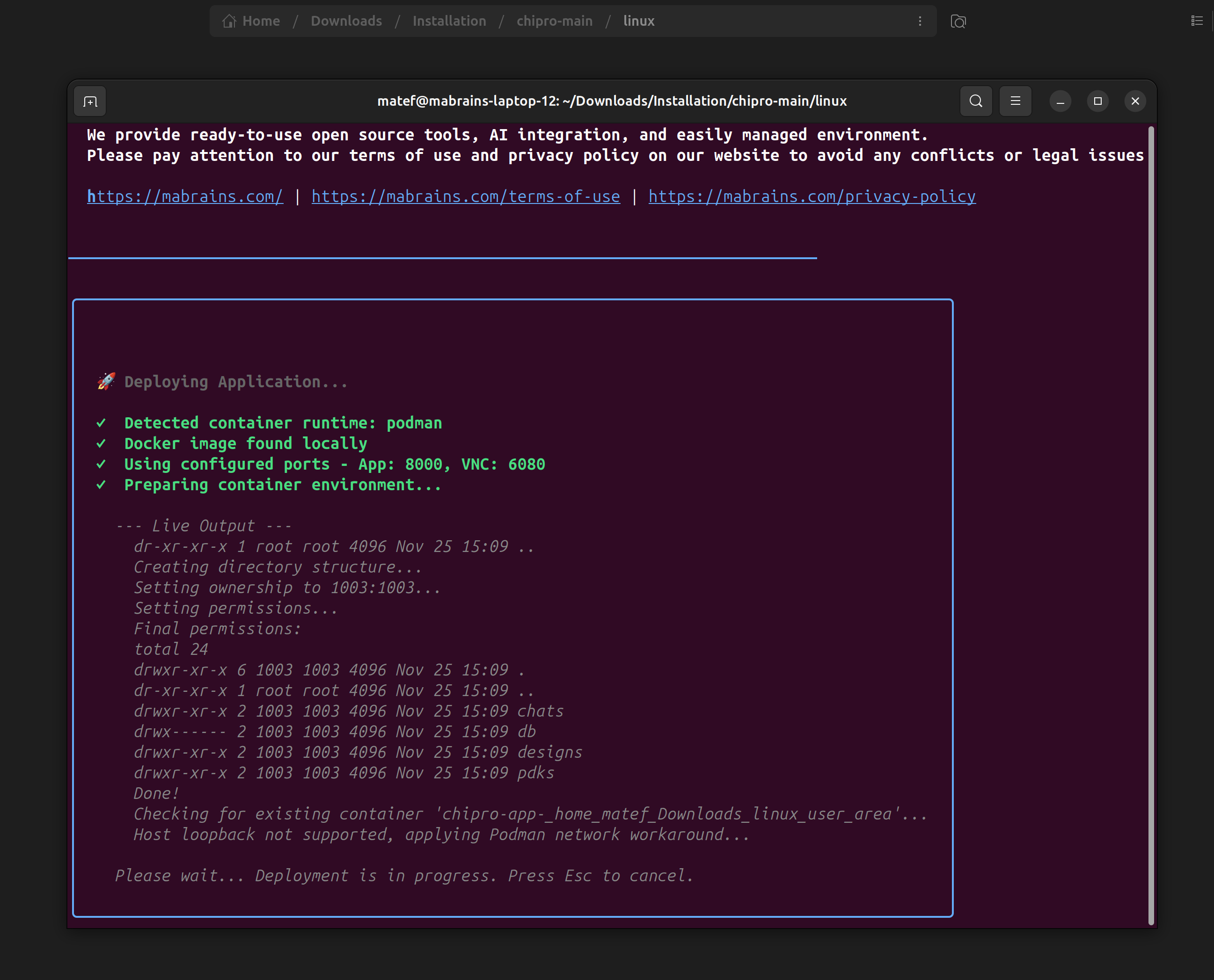
The Start Application button performs the following:
- Downloads the Chipro container image (if not already available).
- Starts the application using your configured settings.
If your VNC or Application ports are already in use, the runner will automatically assign alternative available ports. A message will appear showing the final ports along with direct access links.
Note:
The Chipro image is approximately 2.5 GB, so the initial download may take some time depending on your internet connection. Please be patient.
4. Viewing Results and Opening Chipro
After the container is successfully started, the runner will display a results screen showing:
- The assigned ports
- Direct links to open Chipro in your browser
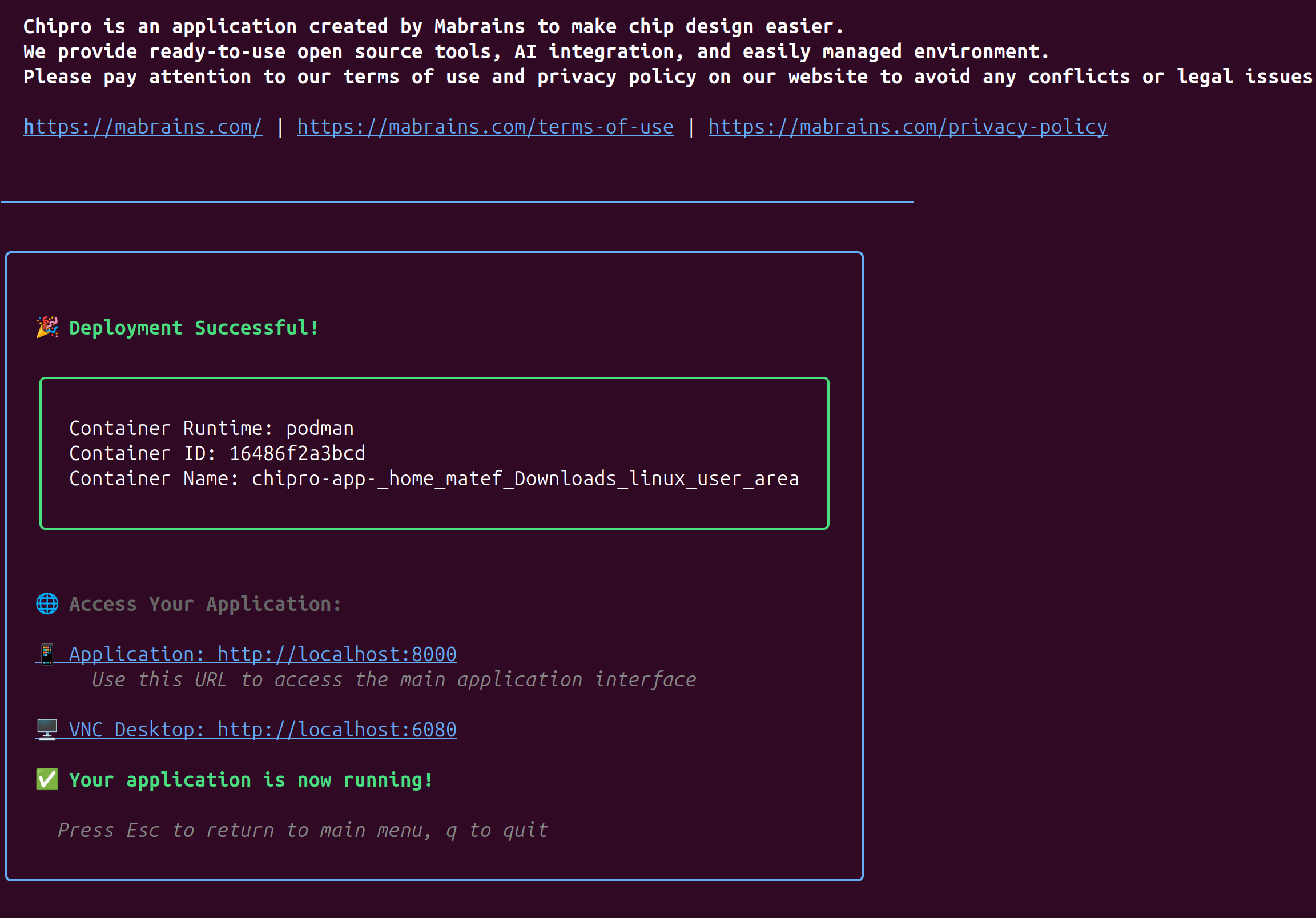
Click any of the provided links to launch Chipro and begin your design workflow.