Sign In and Create Your API Key
Before using Chipro for design or automation, you need to sign into your Mabrains account and generate an API key. This key securely activates Chipro’s tools inside your workspace.
Follow the steps below.
1. Sign in to Mabrains
Open the Mabrains platform in your browser and Use the top-right menu to access your account options.
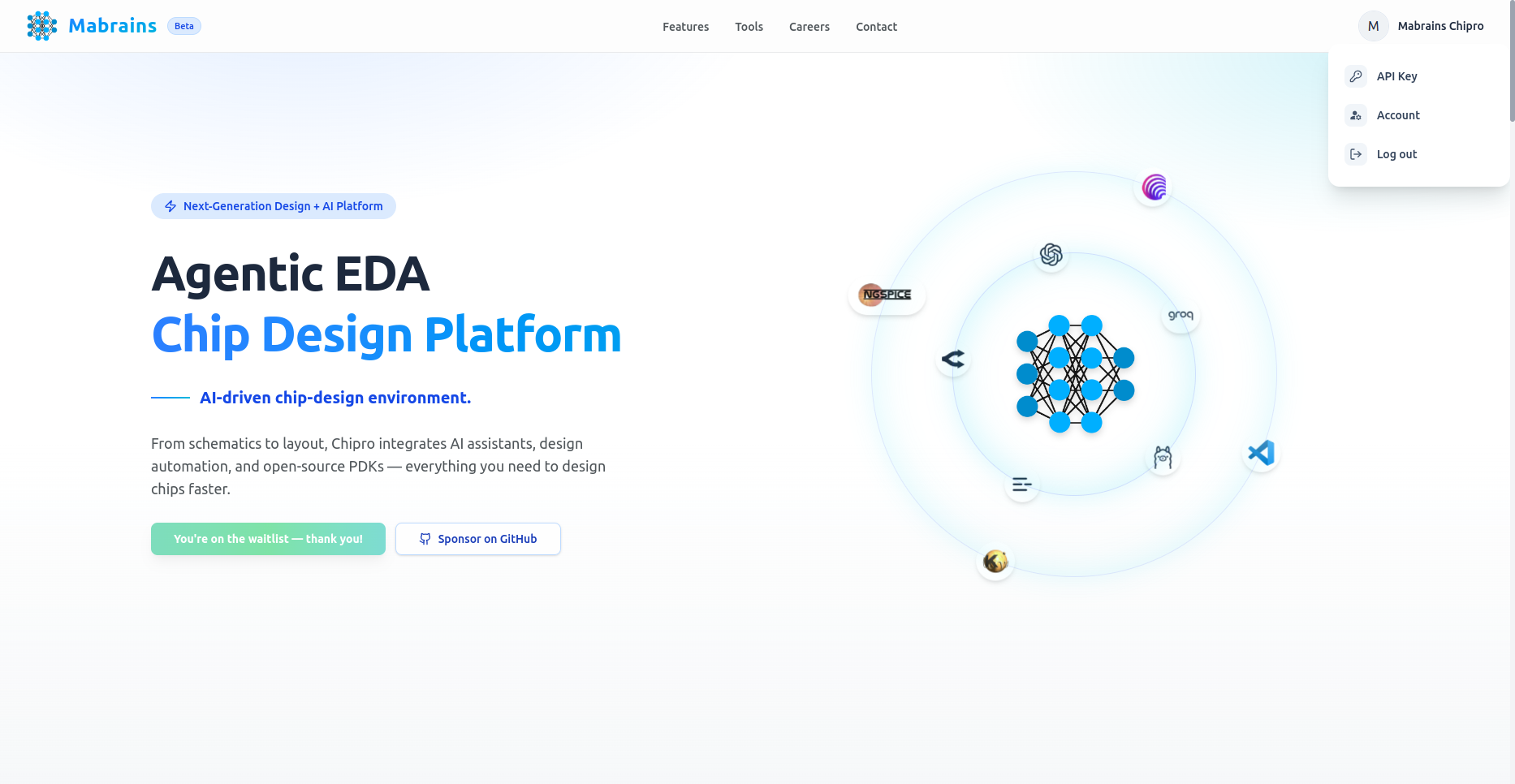
2. Navigate to the API Keys Page
From the user menu, select API Key.
This opens the API Key management dashboard.
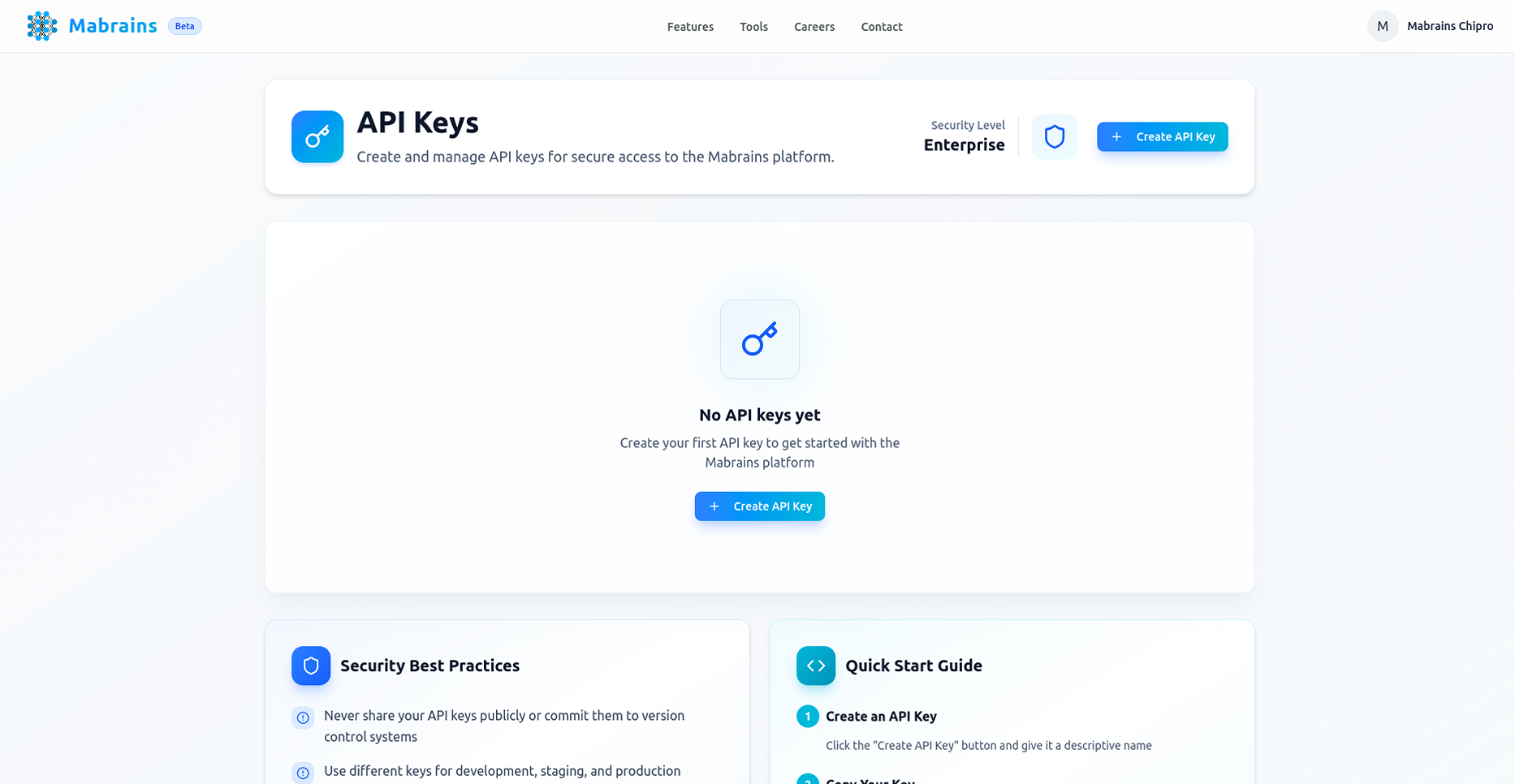
If this is your first time here, the page will indicate that no keys have been created.
3. Create a New API Key
Click Create API Key to open the key creation dialog.
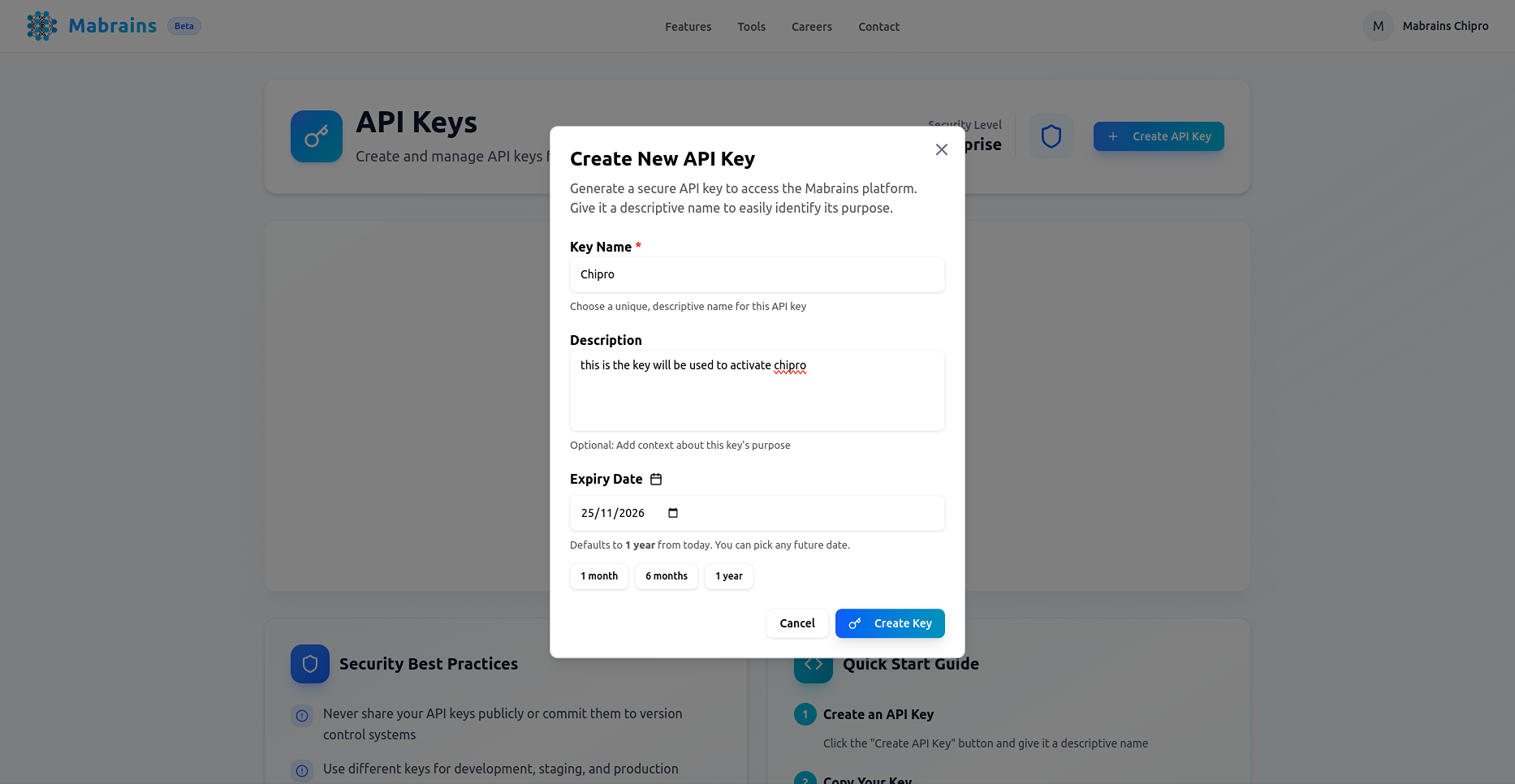
Fill out the form:
- Key Name — a descriptive name such as “Chipro”
- Description — optional note about how this key will be used
- Expiry Date — defaults to one year, but you may choose any future date
When you are ready, click Create Key.
4. Copy and Save Your API Key
Once generated, the platform shows your new API key only once.
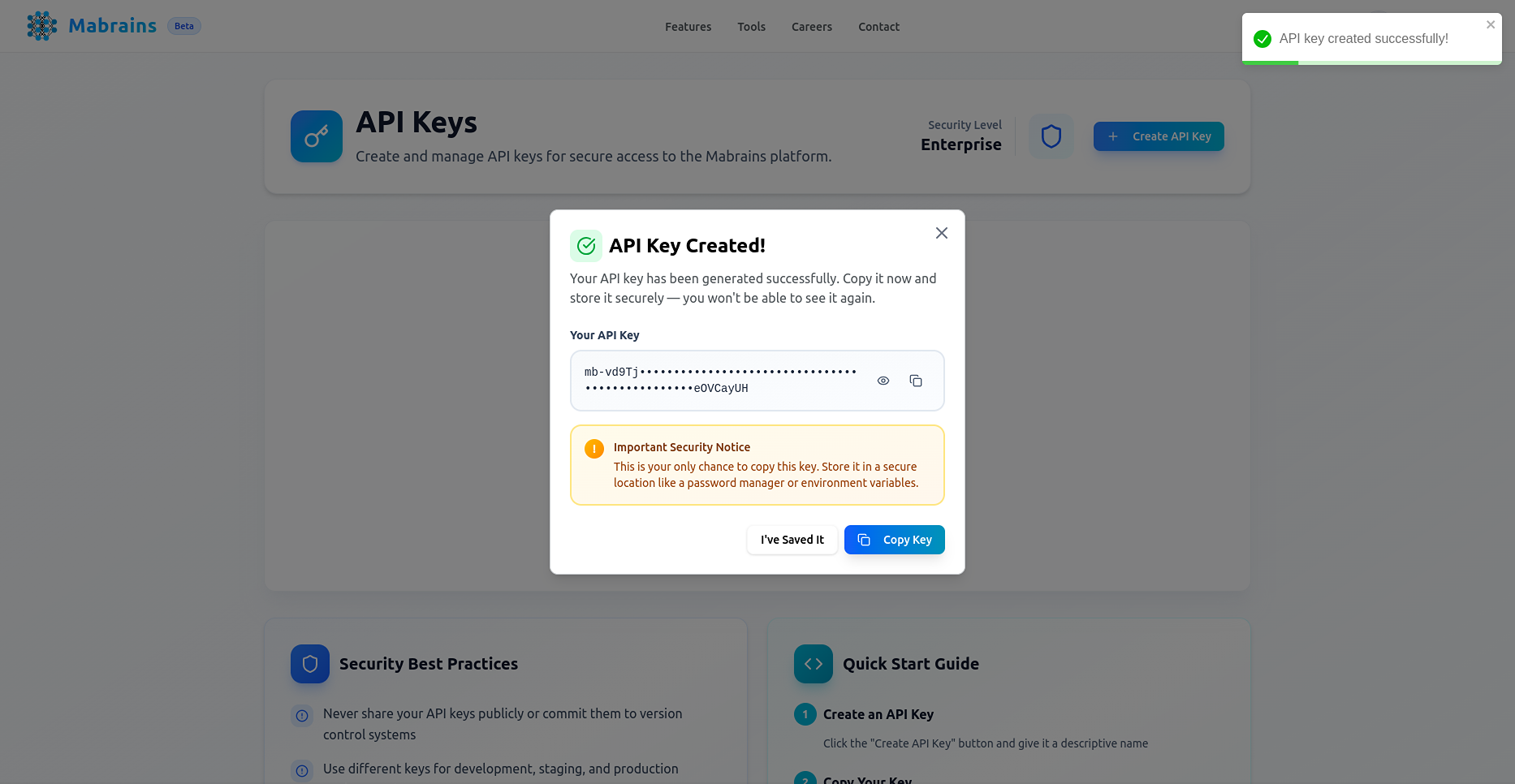
Copy the key and store it somewhere safe:
- A password manager
- Secure environment variable storage
- A private secrets vault
You will not be able to view this key again.
Click I’ve Saved It once done.
5. View Your Active Key
Your key will now appear in the API Keys list with its metadata:
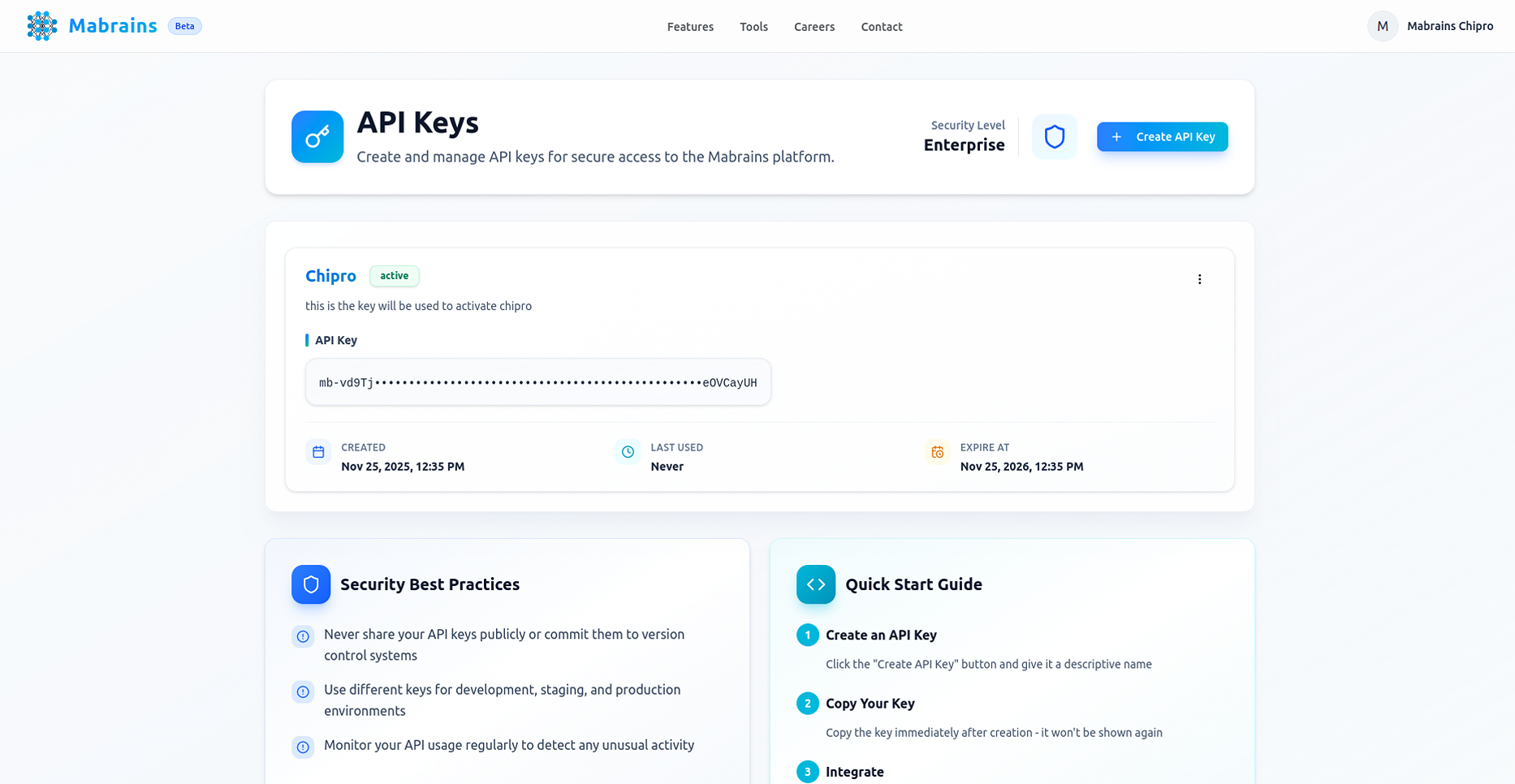
From here you can:
- Review the key name and description
- See creation and expiration dates
- Revoke the key when needed
Your API key is now ready to be used to activate Chipro.