Embedding Setup
Embeddings significantly enhance Mohet’s ability to understand your conversations, maintain context, perform better semantic search, and process long technical inputs.
They are optional, but highly recommended for the best experience.
If no embedding provider is active, Mohet shows a small reminder badge in the header encouraging you to complete setup.
Why Embeddings Matter
- Stronger long-context understanding
- Better reference to previous messages
- Improved summarization quality
- More accurate reasoning across large technical inputs
- Better grounding when analyzing schematics, logs, documents, or PDFs
Embeddings do not change the model used for responses — they simply allow Mohet to understand more.
Step 1 — Open the Setup
When Mohet detects that no embedding model is configured, you will see a setup prompt:
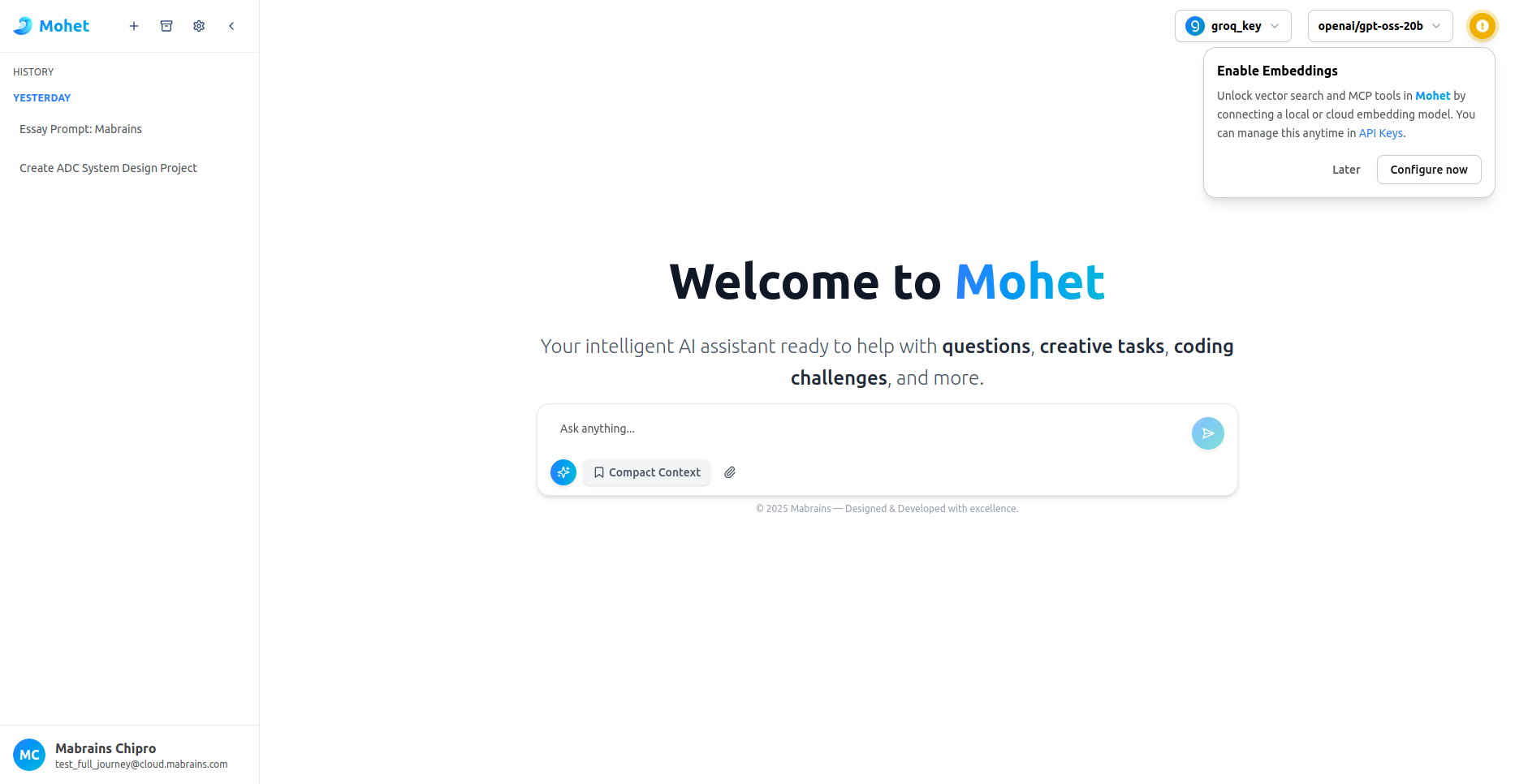
Click Configure now to begin.
Step 2 — Choose Embedding Type
You can choose between:
Cloud Provider
Uses embeddings through an API-based provider.
No installation required.
Local (Hugging Face)
Downloads and installs a local model for private, offline embeddings.
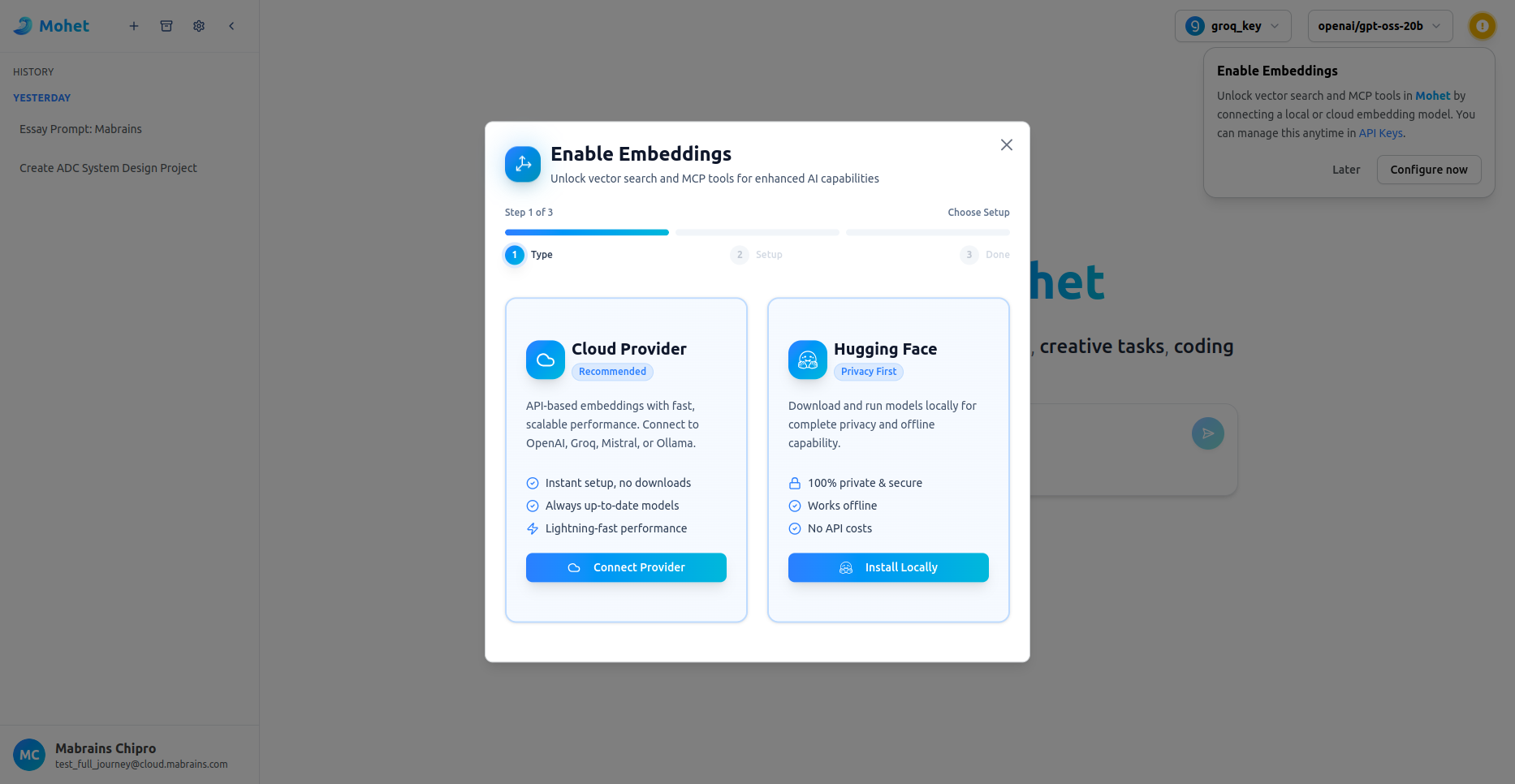
Select an option to continue.
Step 3 — Configure or Install the Embedding Model
If you choose Local installation, enter the Hugging Face model ID
(e.g., ibm-granite/granite-embedding-107m-multilingual):
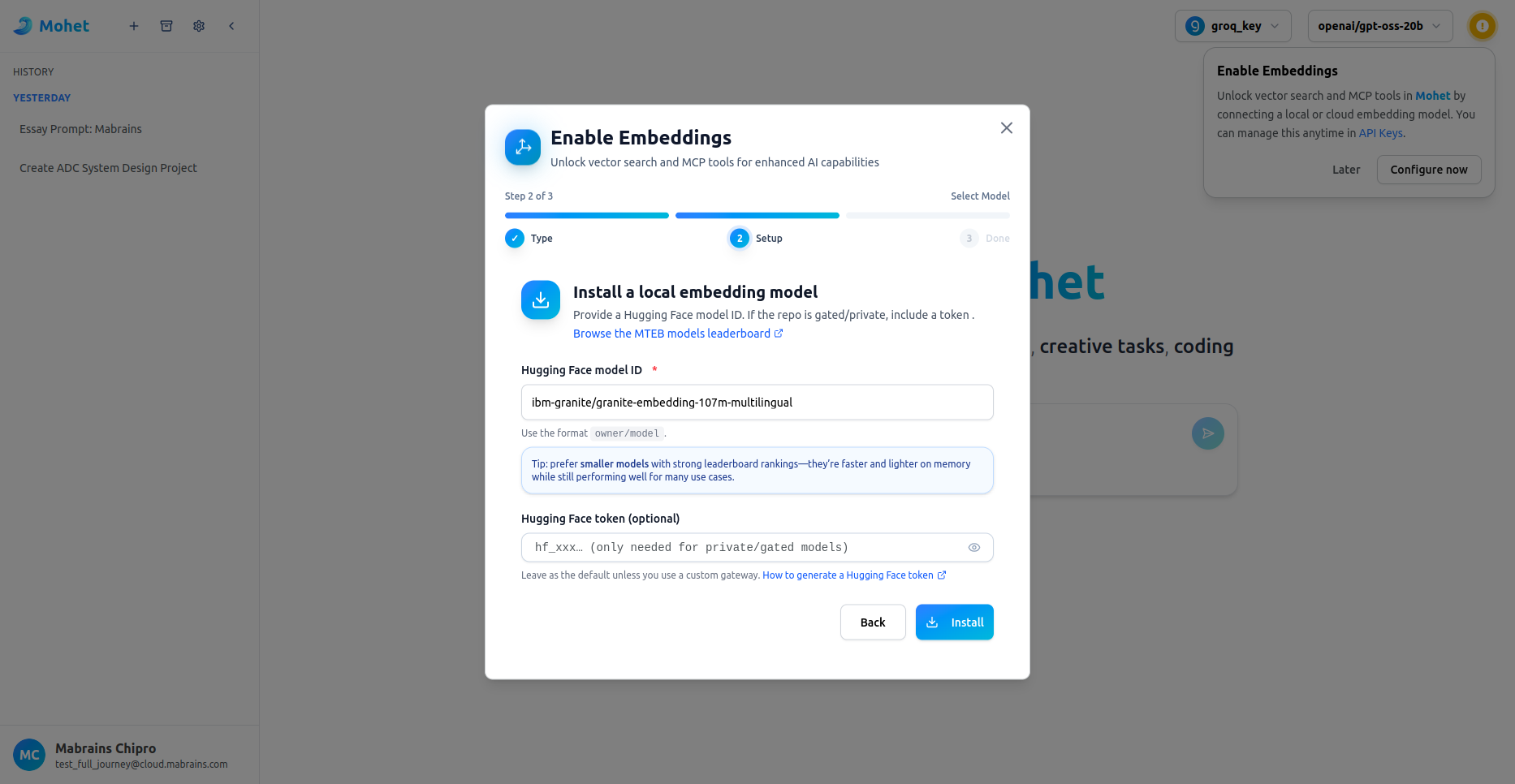
You may also include a Hugging Face token for private/gated models.
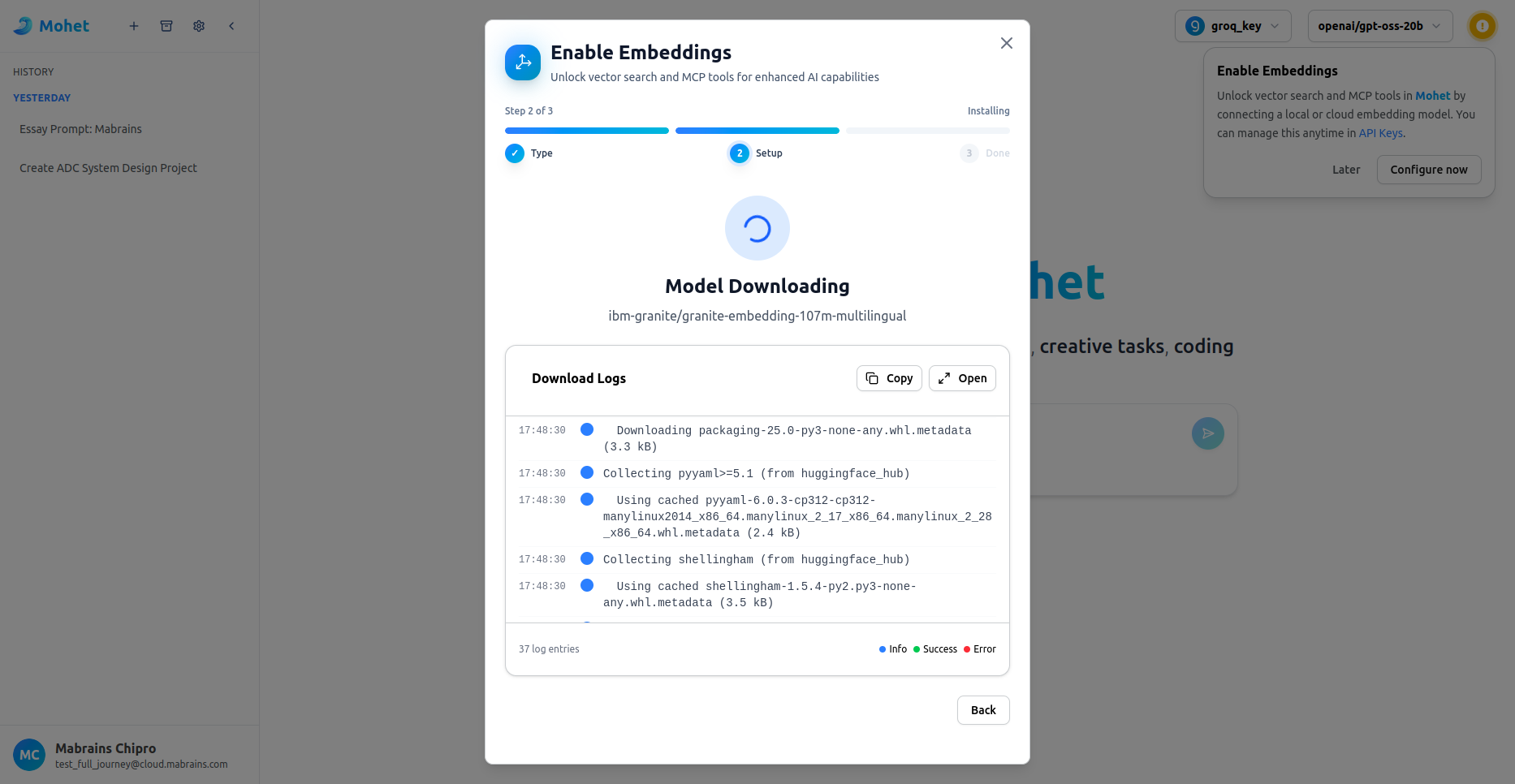
Step 4 — Model Download & Installation
Mohet displays real-time download logs.
This may take a few minutes depending on model size and connection:
Step 5 — Completion
Once installation is finished, Mohet confirms activation:
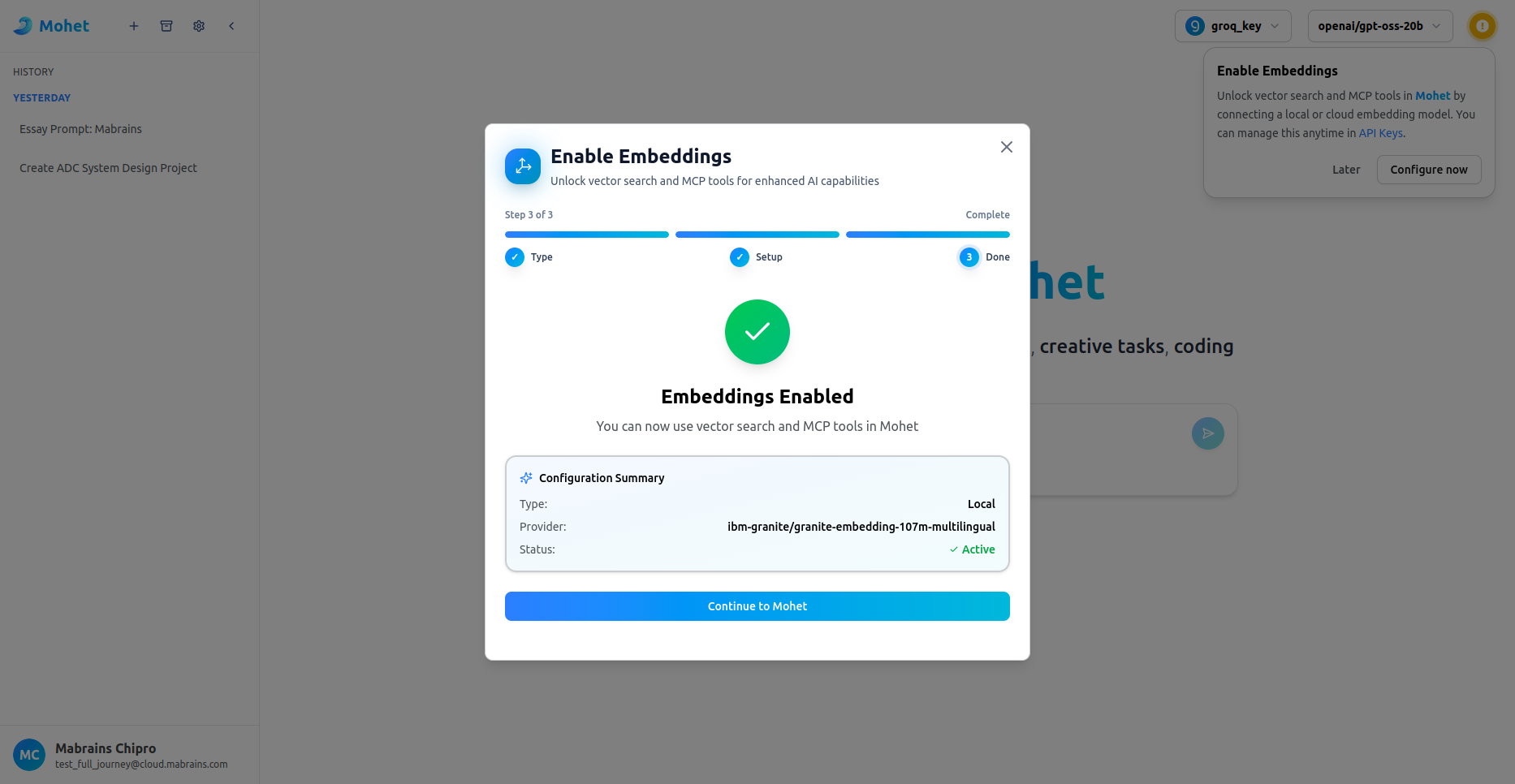
Click Continue to Mohet to go to settings and activate the model.
Managing Embeddings Later
After setup, all embedding controls are available under:
Mohet Settings → Select Embedding Model
From here you can:
- Switch between embedding models
- Activate or deactivate a model
- Remove embeddings entirely
- Install new local models
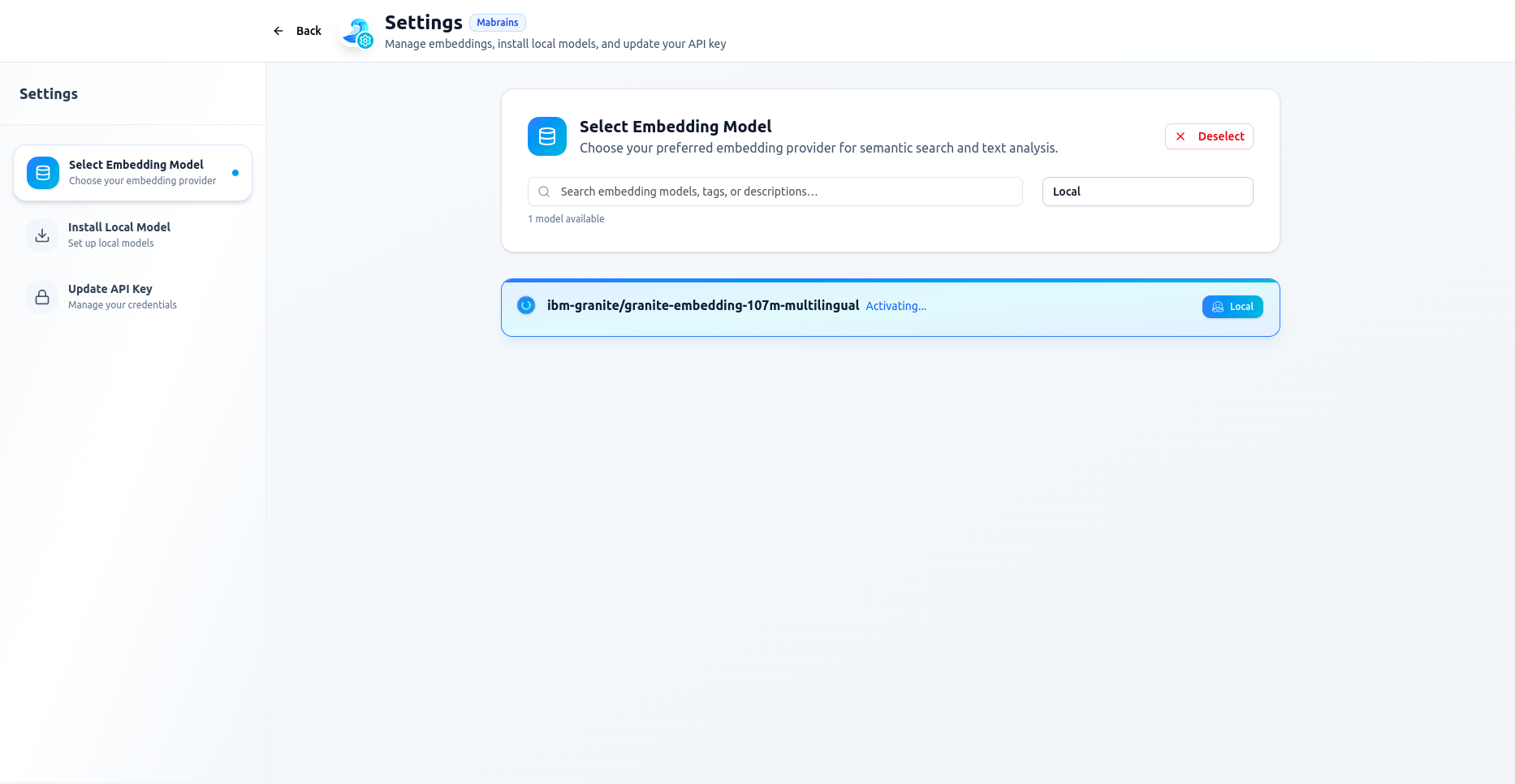
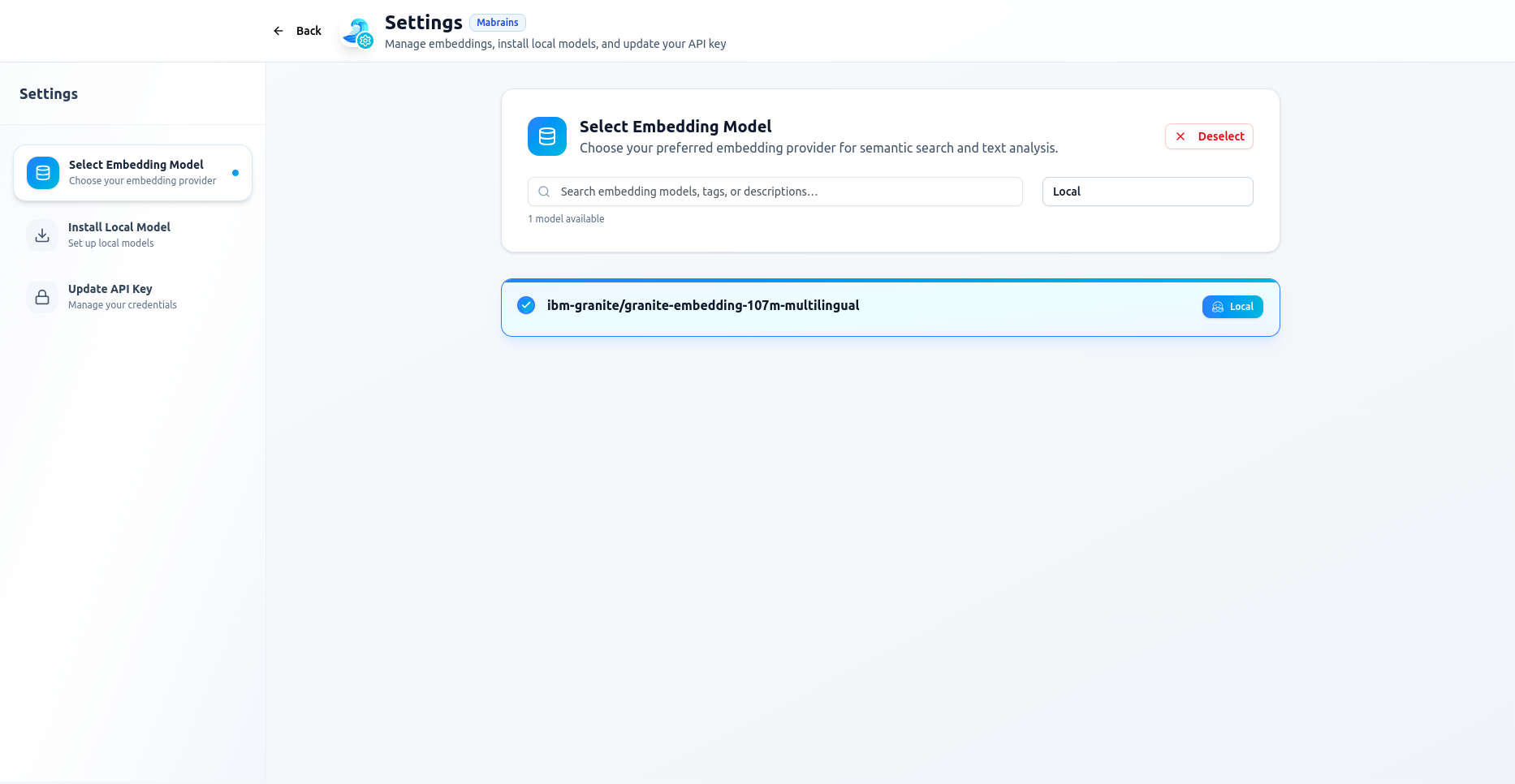
Selecting a Model
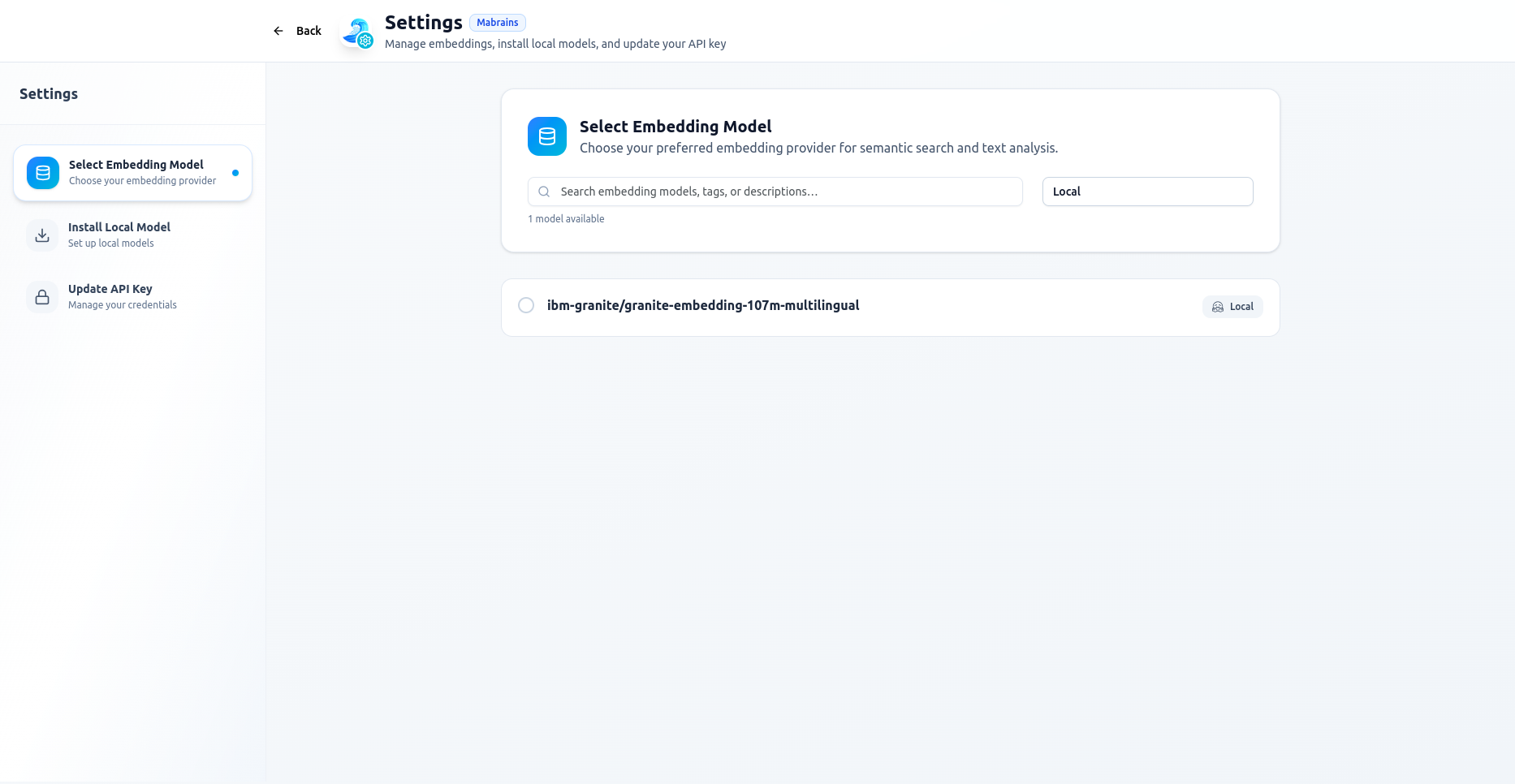
Activation in Progress
Successfully Activated
⚠️ Important Note — Resuming Interrupted Downloads
If you close the popup, press Back, or refresh the page while a model is downloading:
You will NOT lose progress.
To resume:
- Open the embedding setup again
- Enter the same model ID
- The log viewer reopens, and the download continues from where it left off
The download is never restarted from zero unless you manually delete the model folder.
This ensures stable and safe installation even if the modal is closed accidentally.
After Activation
Once an embedding provider is active:
- The header warning disappears
- Mohet immediately uses embeddings to enhance context
- All new conversations benefit automatically
- You can switch or clear embedding models at any time in Settings
Embeddings run in parallel with your chat provider and do not affect your billing or model selection.