Provider Setup
Mohet requires at least one valid AI provider before it can generate responses. The setup wizard helps you select a provider, supply an API key, and validate the connection.
If Mohet detects that no provider is configured, it redirects you to this page automatically.
1. Open the Setup Wizard
When you first visit Mohet without a configured provider, you’ll see the setup screen:
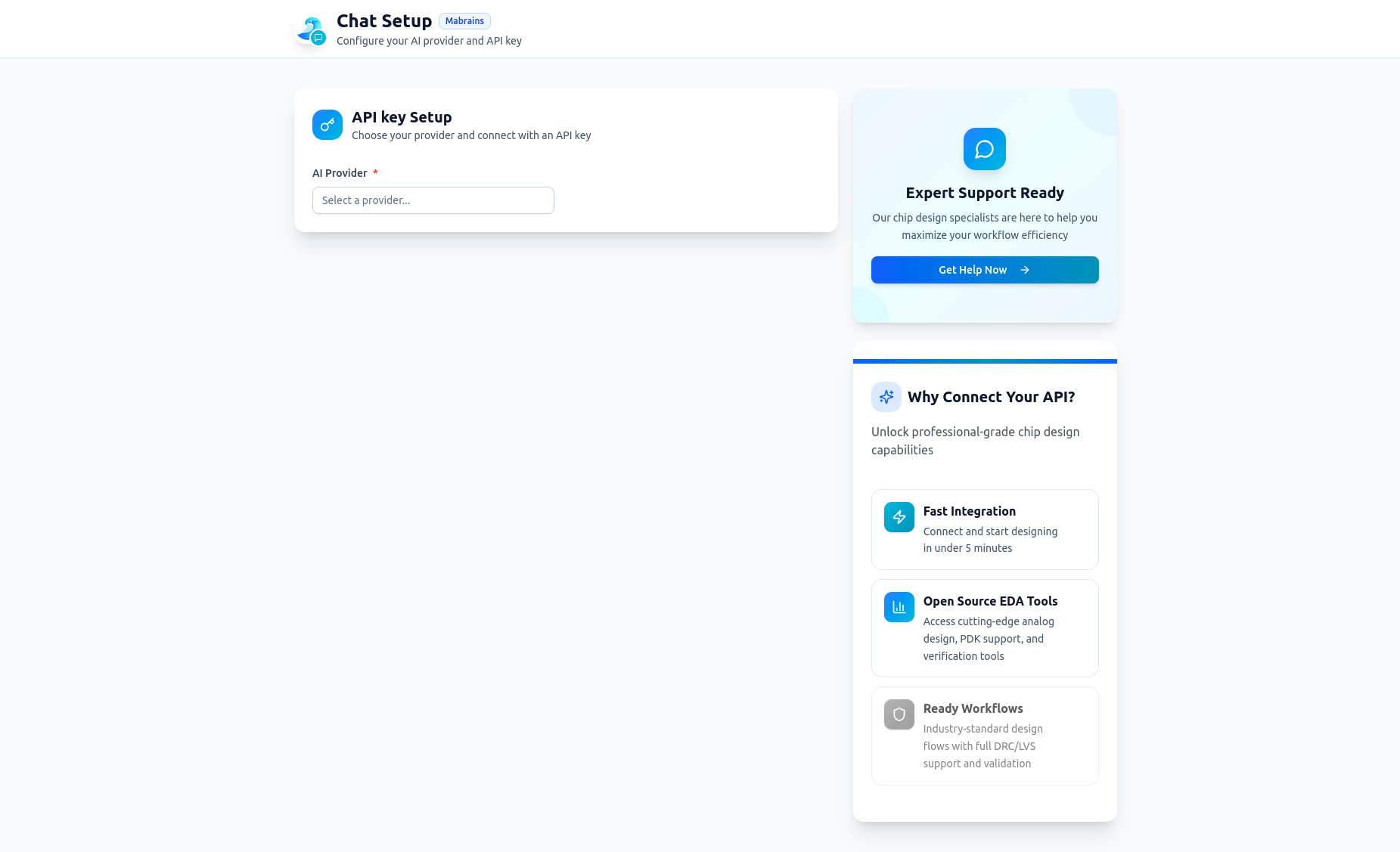
The wizard includes guidance panels, support links, and an explanation of why provider integration is required.
2. Select an AI Provider
Choose the provider you want to connect. Mohet supports:
- Mabrains (default)
- OpenAI-compatible providers
- Groq
- Custom endpoints
Once you click the provider dropdown, select the one you want to use.
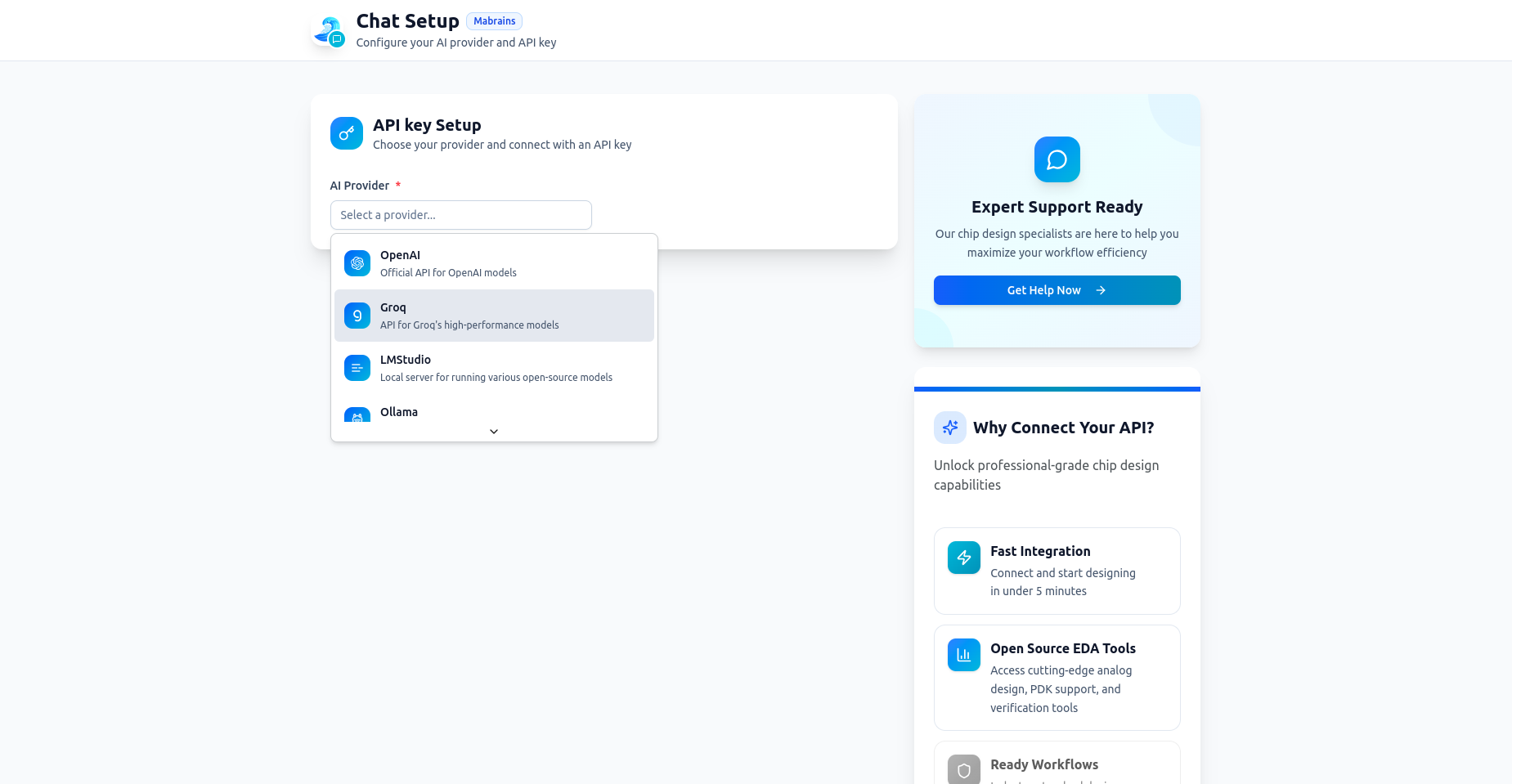
After selecting a provider, Mohet automatically loads recommended defaults for the provider’s endpoint.
3. Enter Your API Key and Connection Details
The wizard expands to show the configuration form for the selected provider.
You can:
- Name the key (for easier identification later)
- Paste the API key
- Adjust the endpoint (optional — useful for custom routes or proxies)
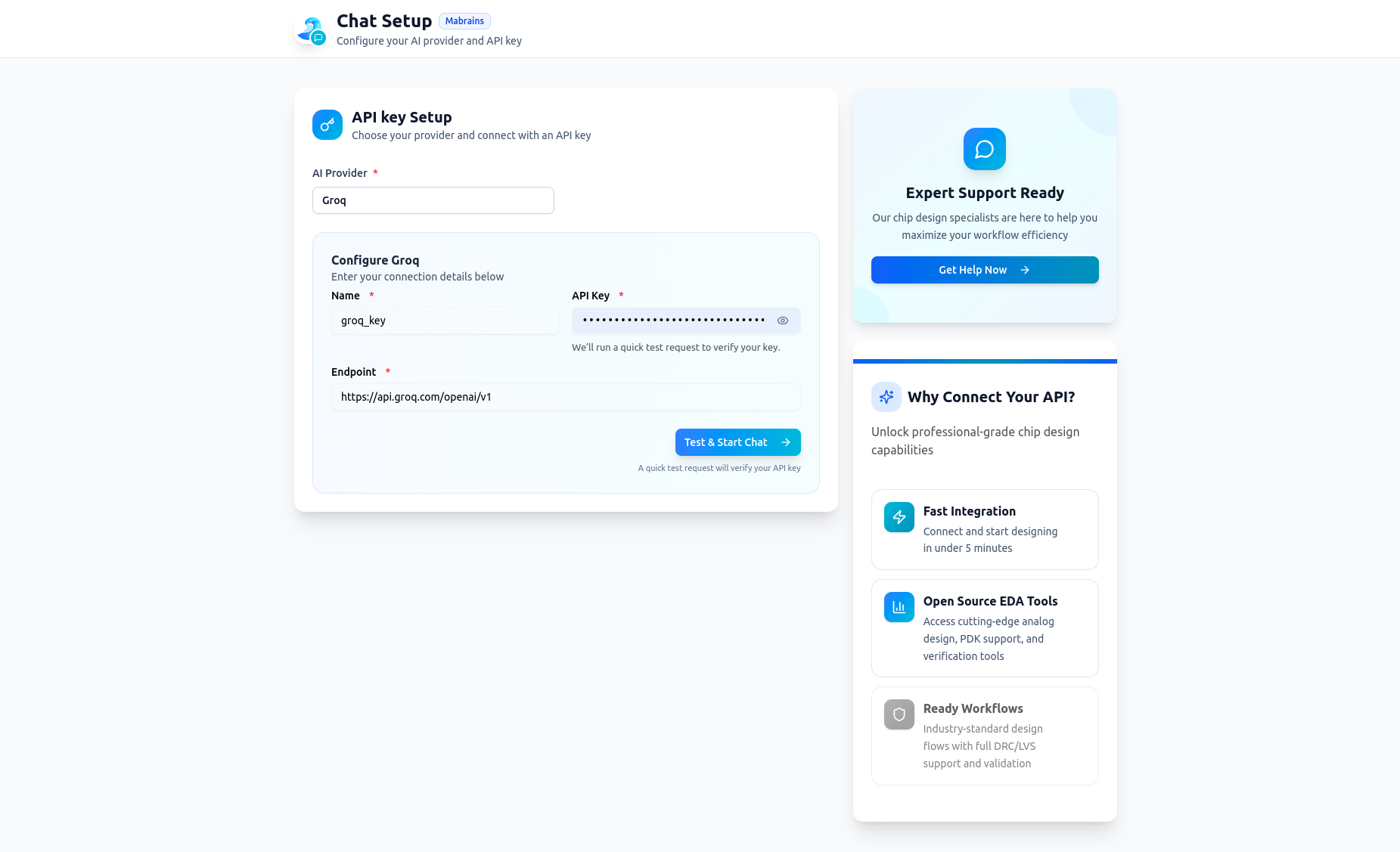
Mohet never stores keys in plaintext — they are always secured and masked.
4. Validate the Key and Start Chatting
Click Test & Start Chat to let Mohet run a quick validation request.
If everything is correct:
- The key is activated
- The provider becomes available in the header
- You’re redirected into the Mohet chat interface
- Model selection becomes available immediately
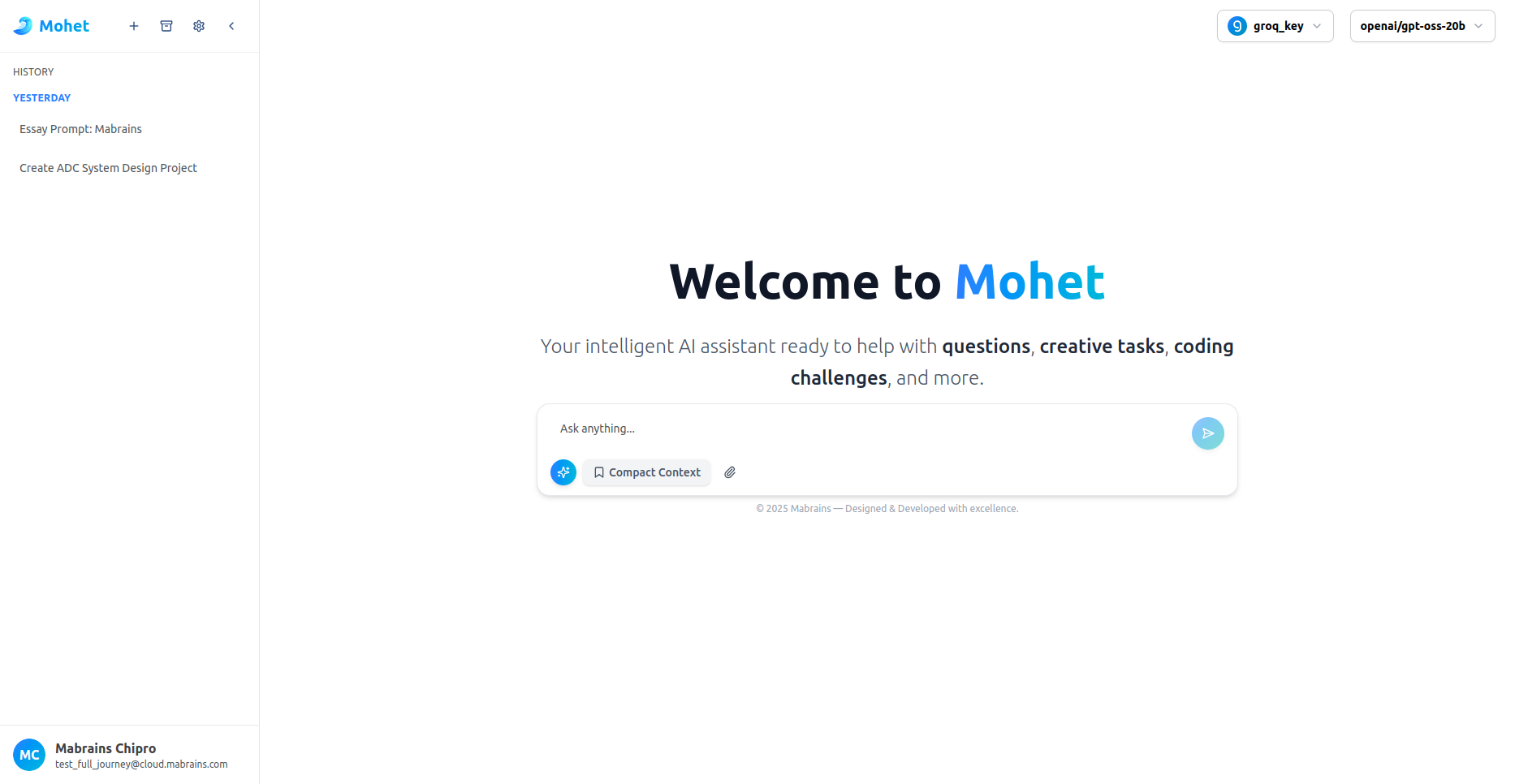
Once the key is validated, you can start using Mohet normally.
Mohet is now fully active and ready.
Managing Providers Later
You can edit, delete, or rotate keys at any time from:
Settings → API Key Management
Available actions:
- Add multiple keys per provider
- Edit key names, endpoints, or scopes
- Re-validate keys
- Remove unused keys
- Switch active provider instantly
Mohet updates live — no refresh required.