Librelane Workflow
Librelane is the integrated digital automation engine inside Chipro.
From any cell that includes a librelane view, you can launch workflows, monitor progress in real time, and inspect detailed run logs — all from inside the Design Manager.
This page explains how to:
- Start a new Librelane run
- View and manage historical runs
- Inspect live execution logs
- Navigate between runs and results
1. Open the Librelane View
Select a cell that contains a librelane view.
This activates the Librelane action bar in the Cell Details panel.
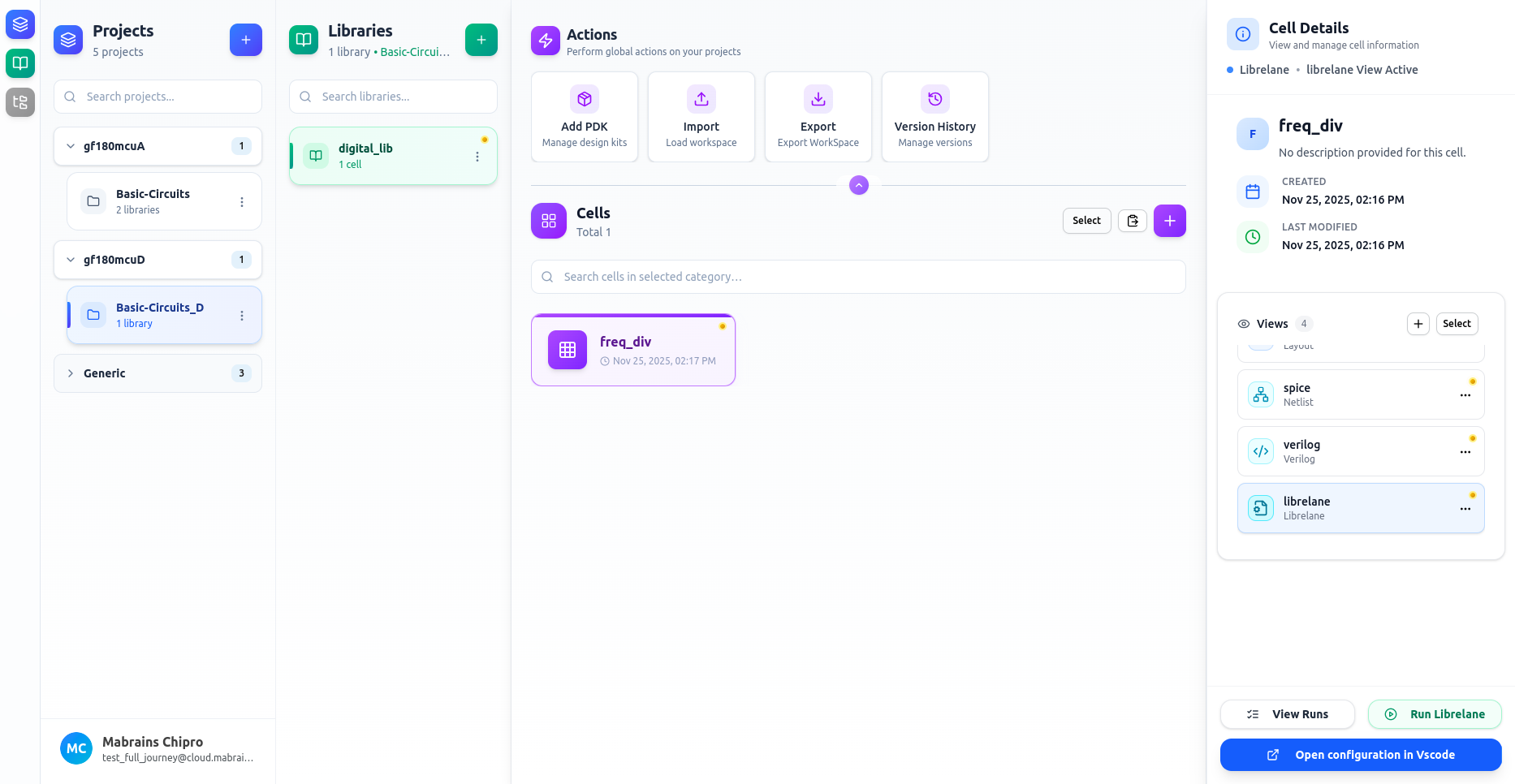
You will see two actions:
- View Runs — open the Librelane Run Manager
- Run Librelane — start a new automated workflow
2. Start a New Run
Click Run Librelane to open the execution form.
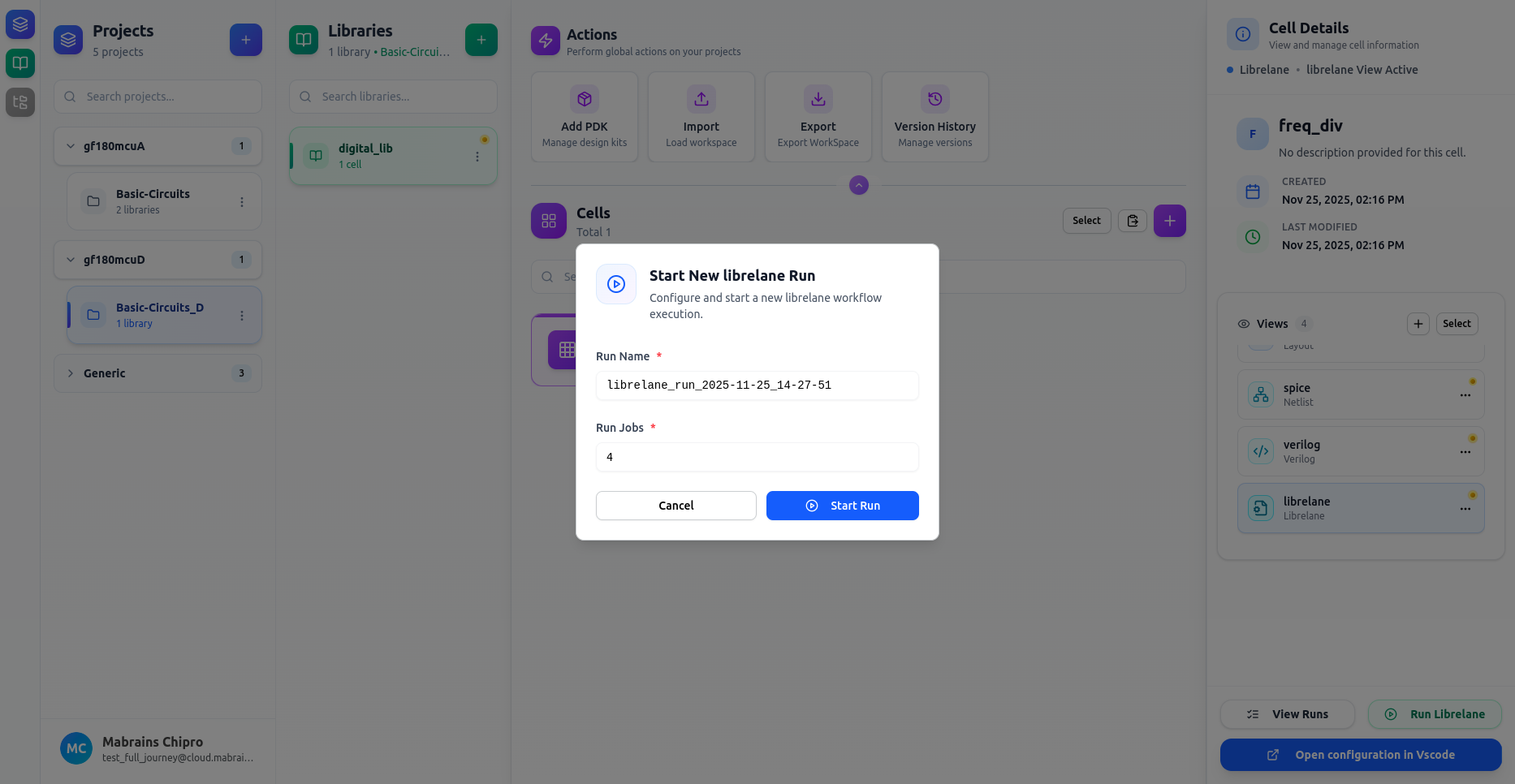
The form includes:
- Run Name — prefilled with a timestamped identifier
- Run Jobs — number of parallel jobs to launch
After confirming the values, click Start Run.
A toast confirms the workflow has started, and the Run Manager automatically opens so you can monitor progress.
3. Use the Librelane Run Manager
The Librelane Run Manager is the central place to browse and inspect all runs associated with the selected cell.
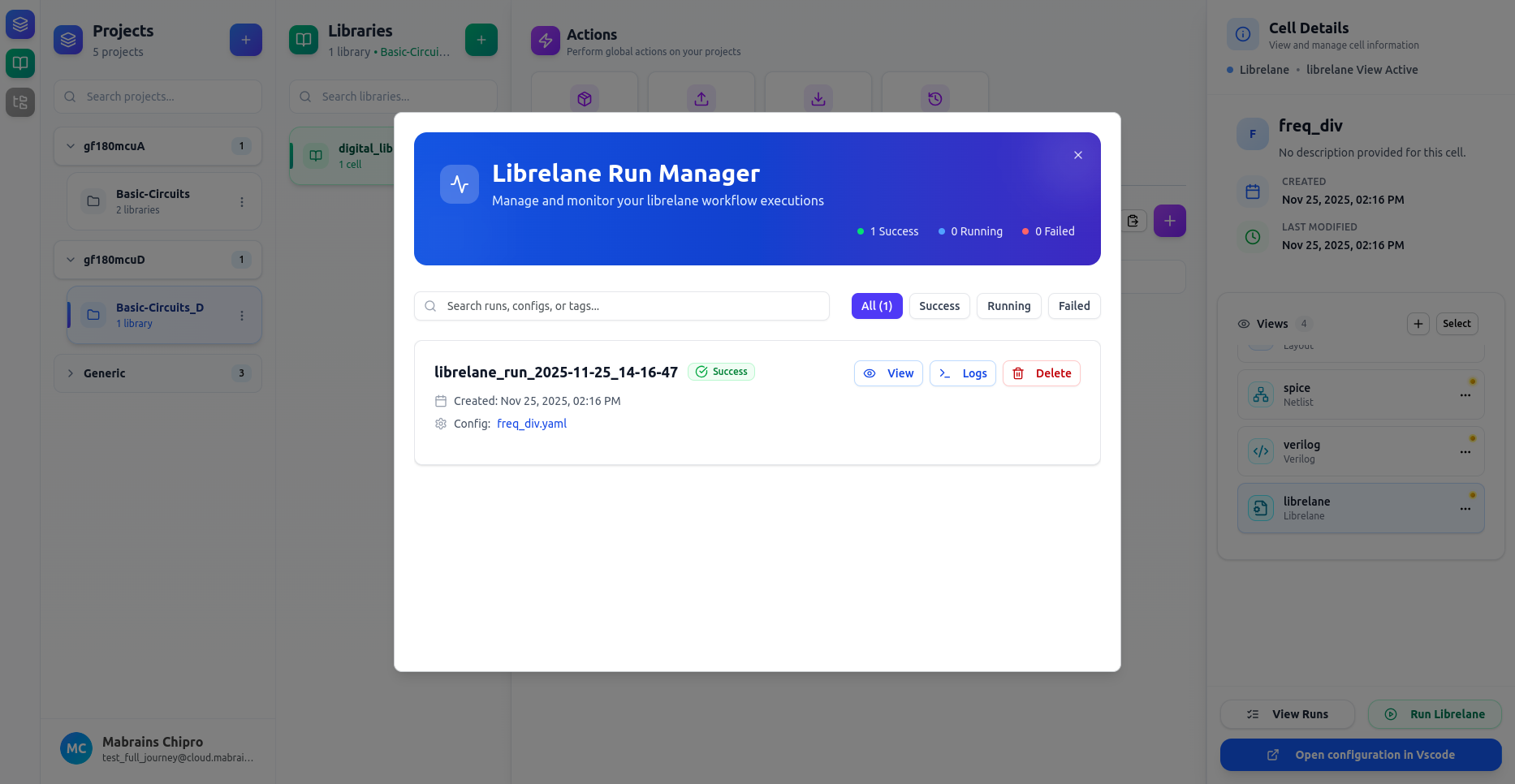
The manager includes:
- Search bar — filter runs by name, config, or tags
- Status filters — All, Success, Running, Failed
- Run cards with:
- Run name
- Created timestamp
- Linked config (e.g.,
freq_div.yaml) - Status badge (Running / Success / Failed)
- Actions: View, Logs, Delete
You can open as many past runs as you need.
4. View or Delete Historical Runs
Each run card provides quick actions:
- View — see metadata and linked configuration
- Logs — open log viewer (see next section)
- Delete — remove a run from history
Example of a run that has completed successfully:
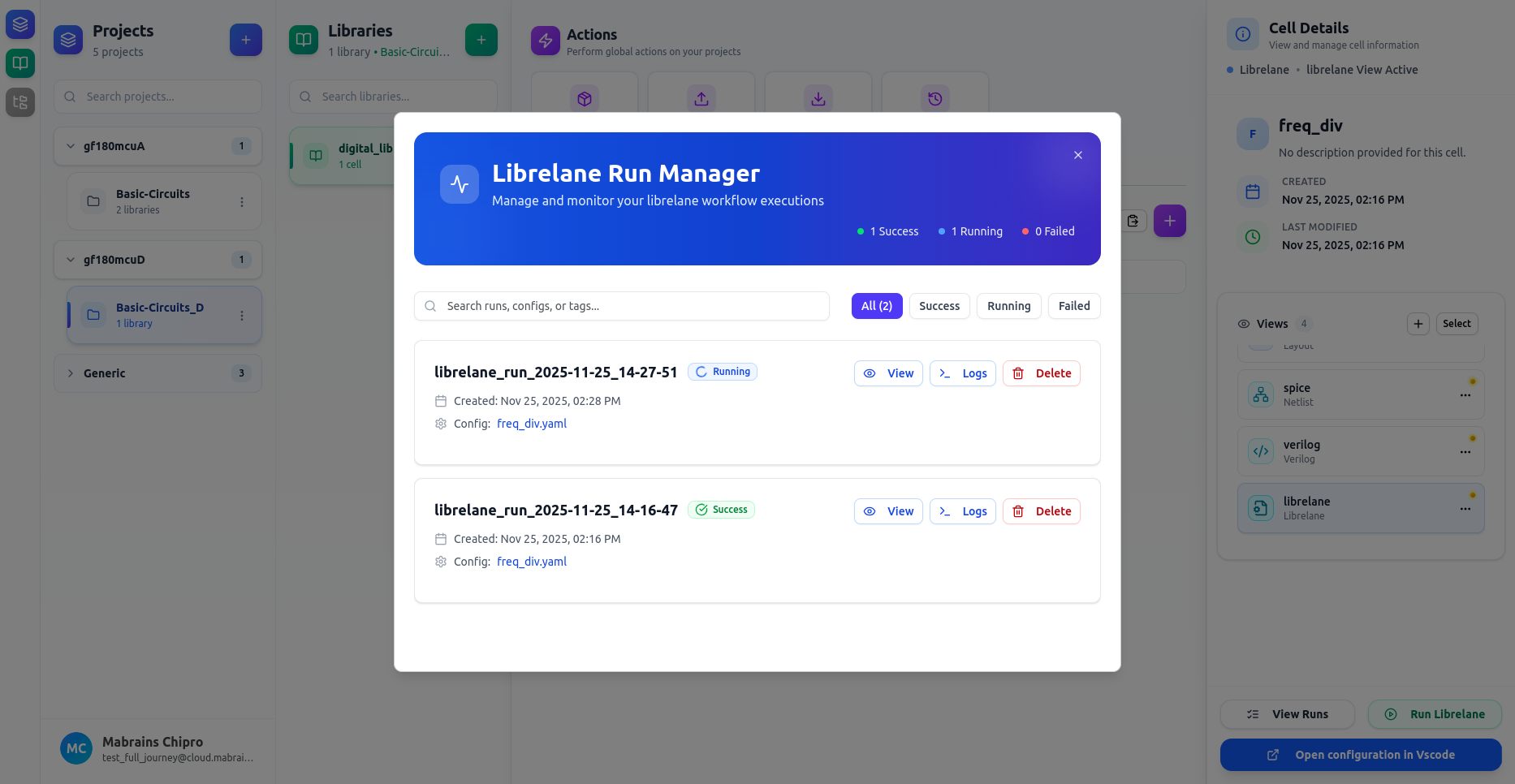
All historical runs remain accessible unless deleted manually.
5. Inspect Execution Logs
Click Logs on any run to open the real-time log viewer.
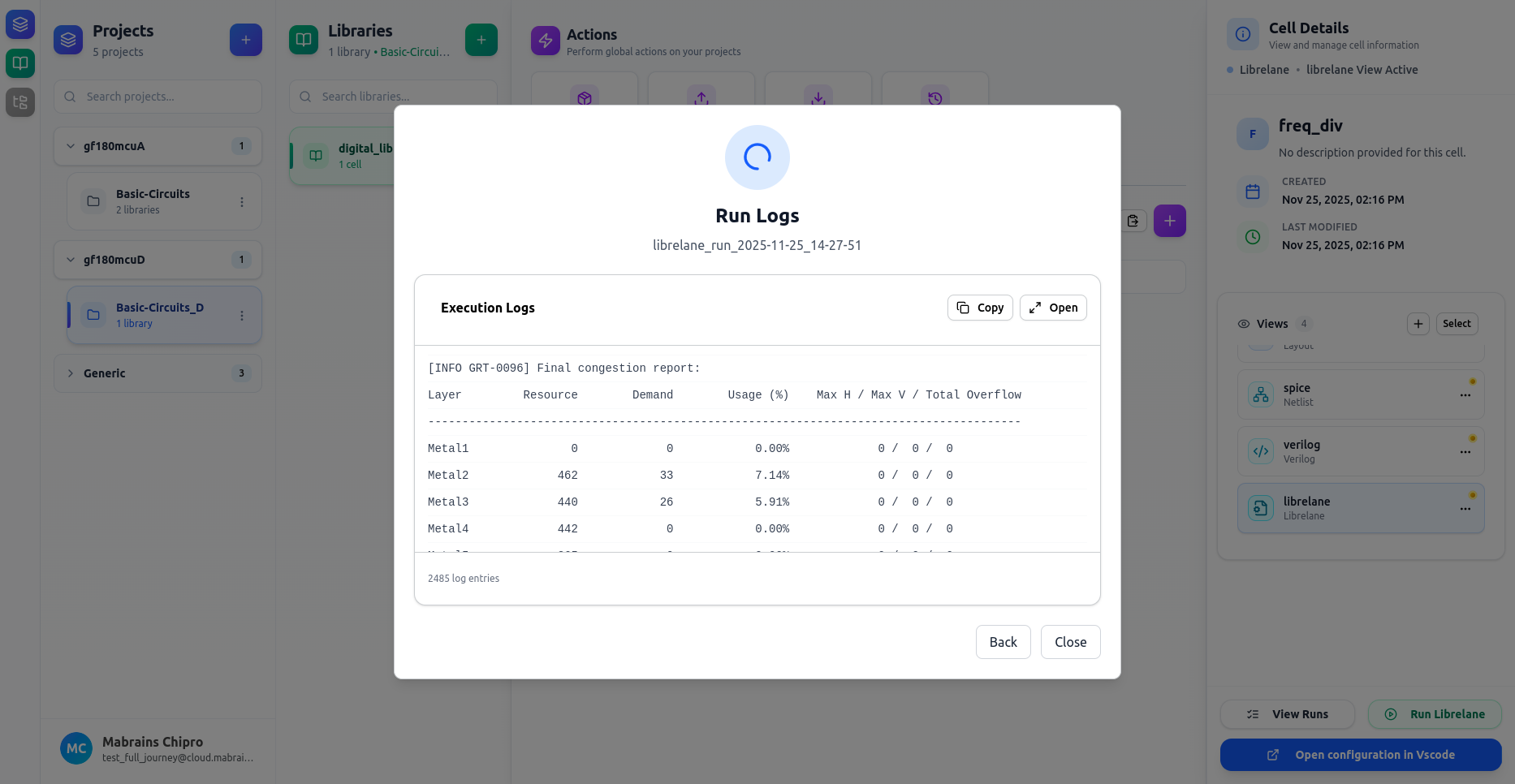
The Log Viewer supports:
- Live streaming — updates in real time while a run is still executing
- Copy — copy the entire log content
- Open — open the logs in a separate view
- Back — return to the Run Manager
- Close — close the panel entirely
Typical Librelane logs include:
- Routing congestion reports
- Placement summaries
- Netlist processing outputs
- Timing information
- Error messages and warnings
For long workflows, logs grow dynamically and update continuously.
6. Open Configuration in VSCode (Optional)
For cells with Librelane configs, you can use the Open configuration in VSCode action.
This opens your local editing environment with the Librelane YAML file.
7. After a Run Completes
Once the run finishes, its status updates to:
- Success (green)
- Failed (red)
The run remains visible in the Run Manager until deleted.
You can now:
- Review the logs
- Re-open the configuration
- Start another run
Summary
Librelane inside Chipro allows you to:
- Execute fully automated digital design workflows
- Monitor progress with real-time log streaming
- Browse and manage historical workflow executions
- Inspect detailed logs and troubleshooting output
- Quickly re-run, delete, or explore configuration files
All without leaving the Design Manager.